
Organization Profile
The engine behind The Relevance System is your Organization Profile. The system uses this profile as a lens to evaluate every single piece of threat intelligence Google processes globally.
To access it, navigate to My Landscape (Beta) -> Organization Profile from the left sidebar of the Google Threat Intelligence platform.
Automated Setup: Setting up your profile is virtually frictionless. Upon your first login as an Admin, simply input your Organization Name and Primary Domain.
The Relevance System will instantly use this information to automatically build your baseline profile by discovering your core business, associated brands, and industry vertical.
Alert backfilling
After creating your organization profile, recent alerts that would have been created before configuration will start to flow in.
Note that it may take up to 48-72 hours for historical alerts to complete backfilling.
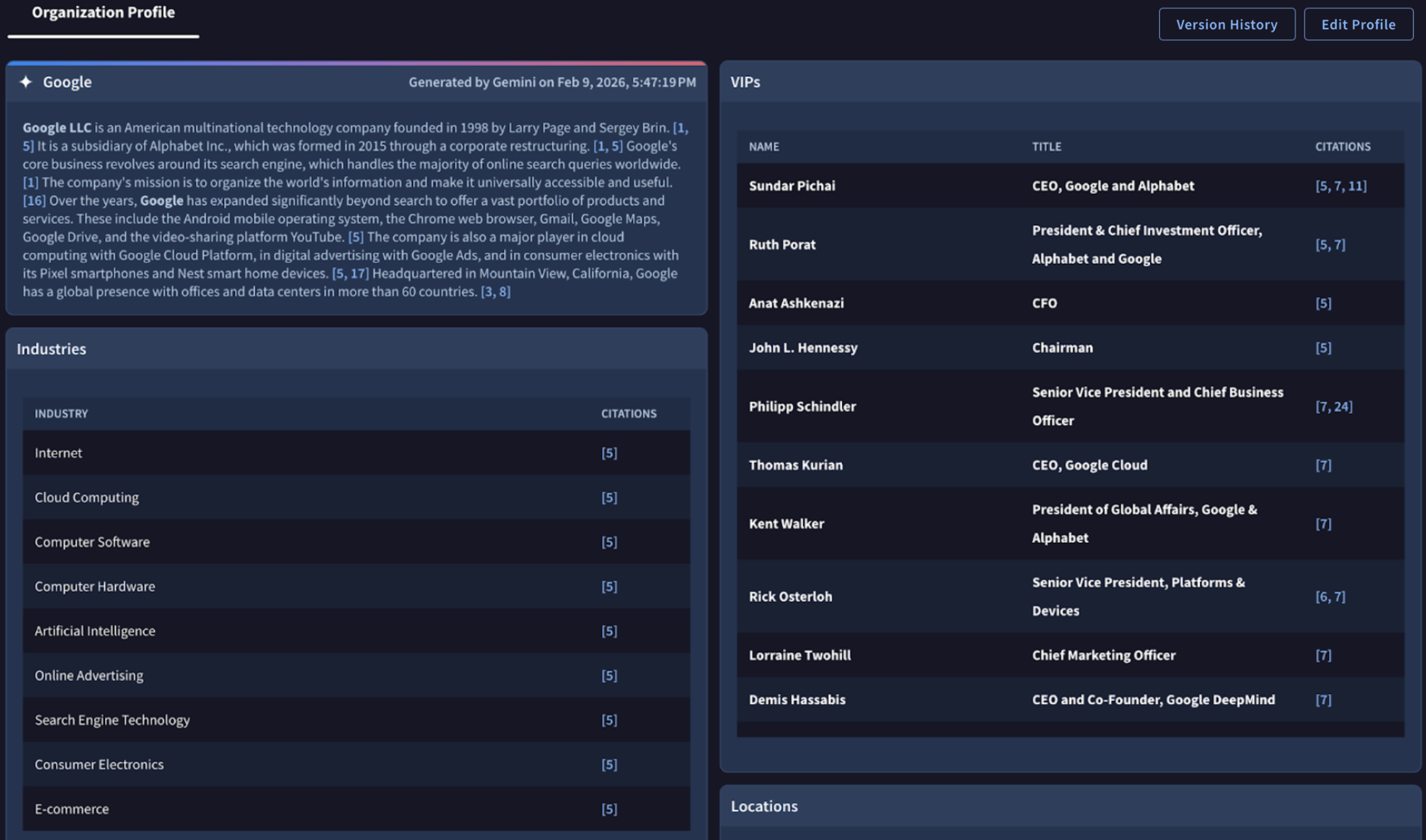
Note that you may experience very few alerts (zero to a few per day, sometimes more). The Relevance System is tuned to only create alerts that are likely relevant to your mission. If you are worried that you are missing important information, please use the dark web search capability and other tools, like DTM.
Each tenant only has one organization profile. If you would like multiple tenants, please reach out to support .
Citations and Versioning
To maintain accountability and an audit trail, the Organization Profile utilizes citations and versioning.
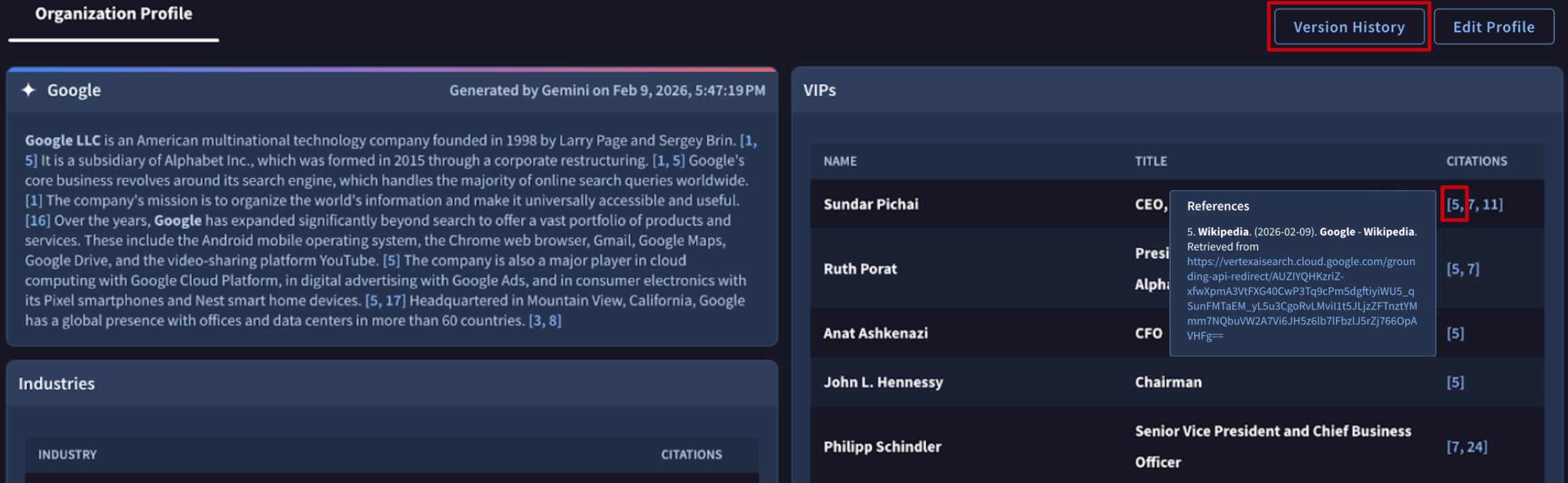
- Citations: Every time a user manually adds or edits a component within the Organization Profile (e.g., adding a new software to the Tech Stack), the system automatically cites that specific user next to the entry. This allows teams to see exactly who defined which parts of the attack surface.
- Versioning: The Organization Profile is version-controlled. If you need to review past versions, you can see a log of previous iterations of your profile. To access, click Version history button at the top of your organization profile.
Refining & Editing Your Profile
While the automated setup does the heavy lifting, your environment will inevitably change over time.
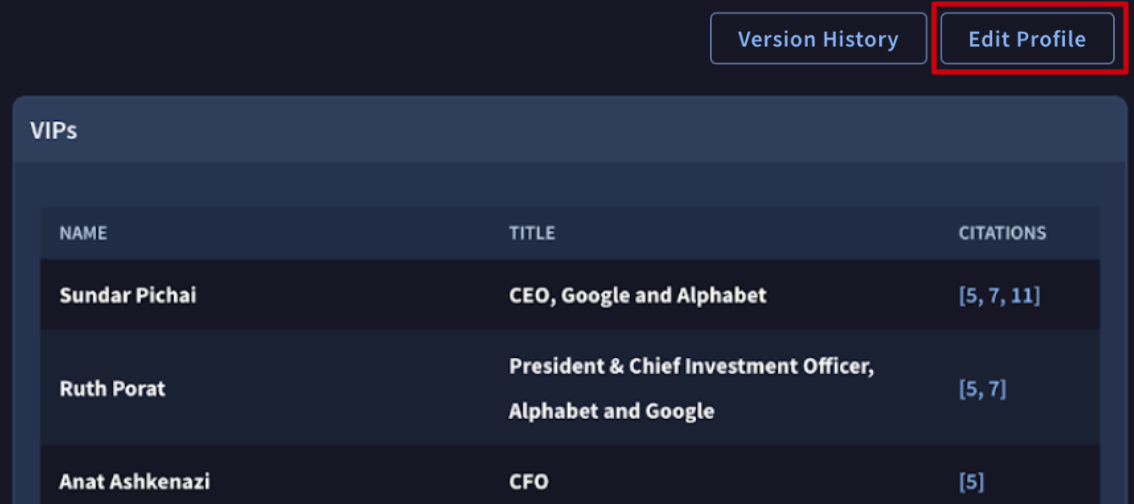
Click the Edit Profile button in the top-right corner to enter edit mode. This action displays edit (pen) and delete (trash can) icons next to each adjustable parameter, allowing you to update your profile and keep your alerts hyper-relevant.
Once your changes are complete, click Save Changes button in the top-right corner to apply them and exit edit mode. To dismiss your updates and revert to the previous settings, click Cancel Changes next to the save button.
Updated 4 months ago