
Splunk integration guide
This guide provides comprehensive, step-by-step instructions for integrating the Google Threat Intelligence (Google TI) data with your Splunk Enterprise Security instance.
Google Threat Intelligence's integration automatically enriches your Splunk logs with curated and crowdsourced threat intelligence data. It allows you to contextualize Indicators of Compromise (IoCs) such as file hashes, domains, IP addresses and URLs, and confirm malicious intent/discard false positives. The context added includes: Google Threat Intelligence score, security industry reputation, severity, threat categories and labels, associated campaigns and threat actors, etc.
The Google TI Augment widget allows you for IoC contextualization during IoC analysis. This integration also includes pre-built Threat Intelligence Dashboards and optionally enables Threat List and IoC Stream ingestion into your Splunk environment. Finally, users can leverage a specialized gti command within Splunk Search Processing Language (SPL) queries to manually enrich event data when conducting investigations.
Table of contents
- 1. Benefits
- 2. Prerequisites
- 3. Installation
- 4. Configuration
- 5. Integration Usage
1. Benefits
The Google Threat Intelligence App for Splunk offers several benefits, primarily by integrating Google Threat Intelligence directly into your Splunk Enterprise Security environment to enhance security operations and investigations.
Key benefits include:
- Enhanced Threat Intelligence Enrichment:
- Command-line driven enrichment of subsets of events when conducting investigations.
- Automatic scheduled enrichment of all events to continuously identify breaches in your environment.
- Comprehensive Indicators of Compromise (IoC) Contextualization:
- Provides a single pane of glass for IoC contextualization through the Google TI Augment widget.
- Powerful Dashboards for Visualization and Analysis:
- Summarizes malware activity in your environment.
- Offers Threat Intelligence dashboards to visualize overall threat intelligence.
- Features Adversary Intelligence dashboards to view identifying threat campaigns, toolkits, and actors observed in your environment.
- Provides Vulnerability management dashboards to identify and prioritize known exploited vulnerabilities that are directly impacting your Splunk environment.
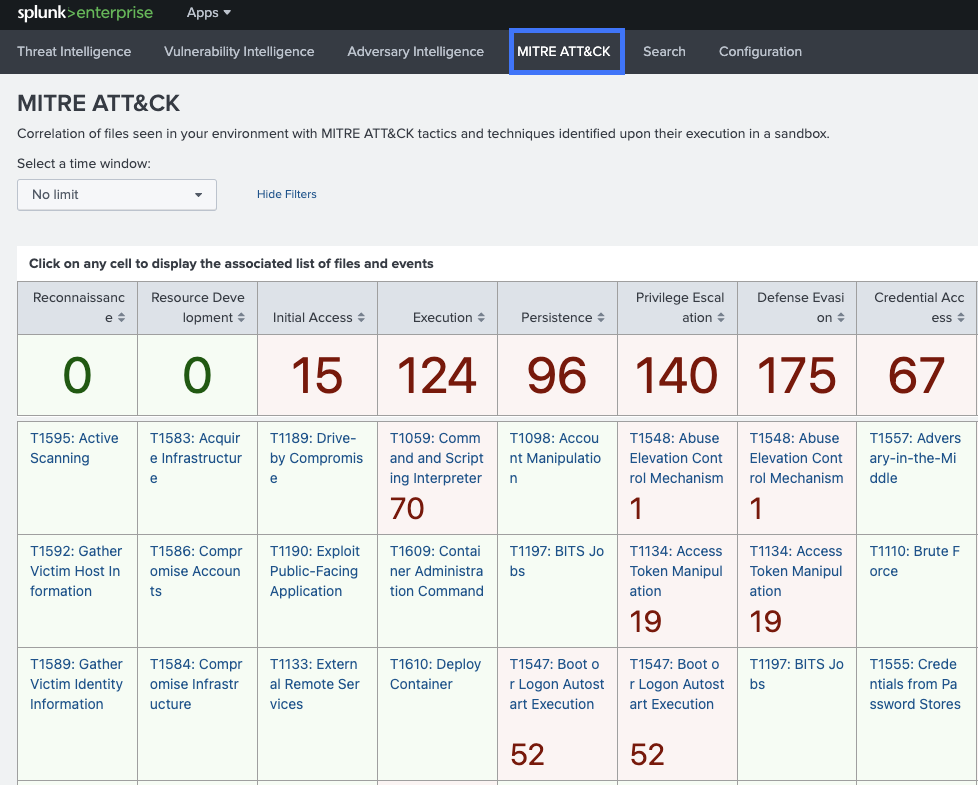
- Includes MITRE ATT&CK matrix dashboards to identify tactics and techniques observed in your environment, helping you understand how malware is leveraging TTPs.
- Allows you to digest intelligence and view flagged files, domains, URLs, and IP addresses, along with a breakdown by category and top-level domain.
- Configurable Threat Lists and IoC Stream:
- You can configure and ingest Threat Lists and custom IoC Streams from Google Threat Intelligence, enabling them into Splunk.
- Threat Lists / IoC Stream dashboards provide a summary of ingested indicators from Google Threat Intelligence over time.
- Streamlined Splunk Searches:
- Events enriched by searching with the
gtimodifier are stored in a lookup table with new fields containing intelligence from Google. - You can use specific manual Splunk search queries to quickly identify suspicious or malicious activity.
- Events enriched by searching with the
2. Prerequisites
Before proceeding, ensure the following requirements are met. Failure to meet these prerequisites is the most common source of operational issues.
- Splunk Version Compatibility: the current Google Threat Intelligence App for Splunk version is 1.4.3 and it is compatible with Splunk Enterprise, Splunk Cloud 10.0, 9.4, 9.3, 9.2. You can check the version history here.
- Splunk Administrator Privileges: you need to have administrator access to your Splunk instance to install the application.
- Google TI API Key: a valid API key is required to authenticate with the Google TI service. It is strongly recommended to use a service account API key rather than a key tied to an individual user account. Service account keys are better suited for automated systems. Please, notice that the usage of this integration entails API quota consumption.
3. Installation
Follow these steps in order to install the Google Threat Intelligence App:
- Download the app from here.
- Log in to Splunk Web and navigate to Apps -> Manage Apps.
- Click Install app from file.
- Click Choose file and select the TA-gti-app installation file.
- Click on Upload.
- Restart Splunk.
4. Configuration
Once finished the Installation process you can go to Configuration under the Google Threat Intelligence App. You will see three tabs: Configuration, Correlations and Inputs.

4.1. Configuration Settings
This mandatory section allows you to configure the most basic values for the integration's operation.
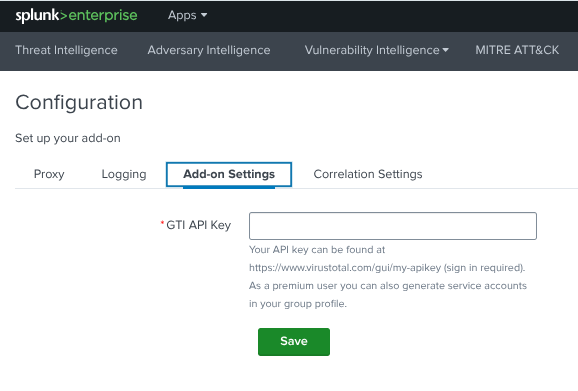
As you can see in the previous image, the most important step here is to navigate to the Add-on Settings tab and enter the Service Account API Key that you previously created for this integration.
Next, you can navigate to the Correlation Settings tab where you will be able to set up this parameters:

- IoC Data freshness: decide how many days you want to keep information stored in a local cache. IoC enrichment will be retrieved from this local storage.
- Lookup table expiration: specify how many days you want enriched IoC to remain in your dashboards.
- Vulnerability Lookup table expiration: specify how many days you want vulnerabilities to remain in your dashboards.
4.2. Correlation Settings (Mandatory)
4.2.1. Creating the basic and IoC Data models correlation search
This mandatory section allows you to manage correlations (create, edit and delete them), both Basic and IoC Data Models based options, to enrich your Splunk data with Google TI.
Even though IoC data models correlations perform better, the following steps explain how to configure basic correlations:
- To create the correlation search, you must first complete the configuration form by providing a distinct name and a brief description.
- Next, specify the IoC type, selecting either File Hash, Domain, URL, or IP Address.
- You also need to input the specific field names within your events that contain these IoCs, as well as list the target indexes, such as EDR or Firewall, from which the IoCs should be retrieved.
- Once all details are entered, click the Create button to save and activate the correlation, which will subsequently run automatically every 15 minutes.

4.2.2. Creating the CVE Correlation Search (optional)
You will need to configure a correlation search that identifies CVEs in your internal Splunk events and enriches them with data from the Google TI Vulnerability Intelligence. This search will look for patterns like "CVE-YYYY-XXXXX" in your logs and then join or lookup against the gti_cve_internal index.
Follow these steps to create a new correlation search:
- Navigate to Correlations Configuration: in Google Threat Intelligence Addon, go to Configuration -> Correlations.
- Navigate to Vulnerabilities tab: click on Vulnerabilities tab.
- Create New Correlation Search: click on Add.
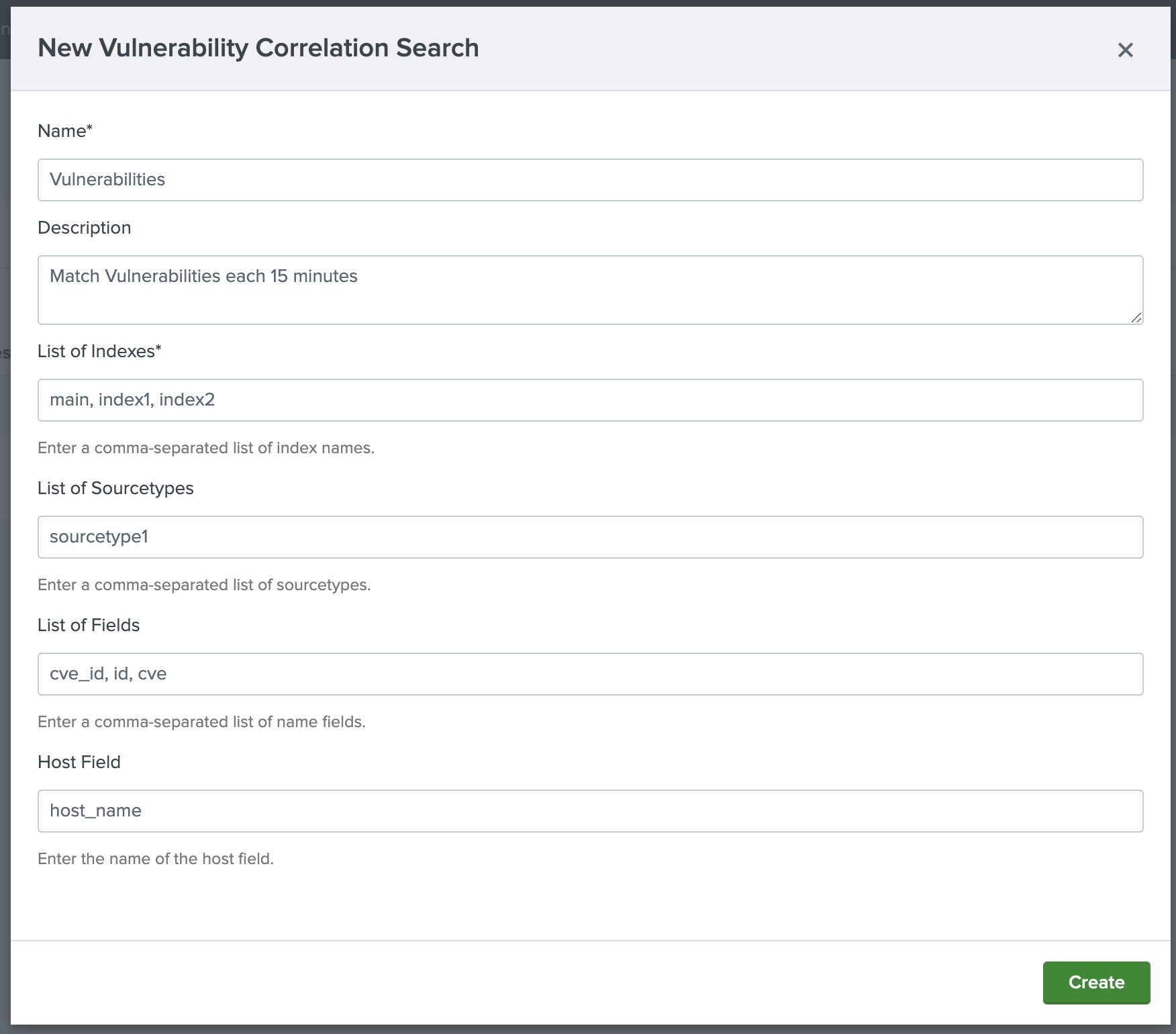
- Fill Out the Form:
- Name: enter a name for your correlation search.
- Description: provide a description of what this search does.
- List of Indexes: enter the indexes where your internal events are stored. This is where the CVE identifiers will be searched.
- List of Sourcetypes: enter the sourcetypes that contain CVE identifiers in your events.
- List of Fields: enter the fields that may contain CVE identifiers in your events. This could include fields like
message,event, or any custom field where CVEs might be logged. - Host Field: enter the field that contains the host information in your events.
- Save the Correlation Search: click Create to save your correlation search.
4.3. Inputs Settings
In case you want to ingest Google Threat Intelligence's Threat Lists or your IoC Stream notifications directly you need to set up this section.
4.3.1. Threat Lists settings
You can use this option to configure the Threat Lists your Google TI license permits you to access, enabling their ingestion into Splunk.
To add a new Threat List you will need to enter a unique name, a time interval of input, the related index and the type of the Threat List category to be ingested as you can see in the following image:
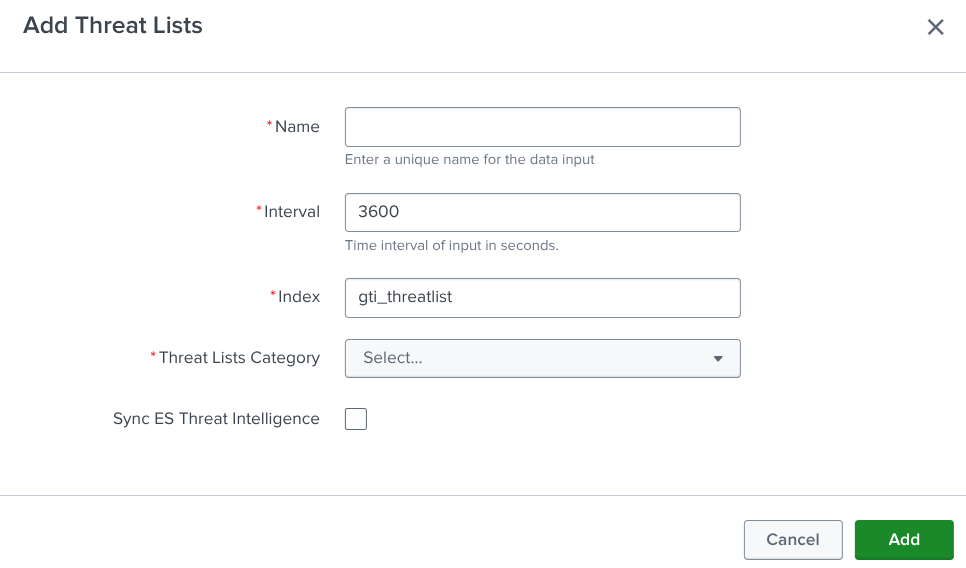
Here, you can find out the full categorized Threat List.
Finally, click the Sync ES Threat Intelligence button to allow you to ingest these indicators of compromise into Splunk Enterprise Security Threat Intelligence tables.
In order to be able to view the Threat List dashboard, which will be explained later, you must first complete this configuration.
4.3.2. IoC Stream notifications settings
Configure the IoC Stream notifications to be ingested into Splunk. For this purpose, complete the form with these details: enter a unique name, a time interval of input, the related index and the IoC Stream filters you may need to only ingest what matters to your organization. You can find out allowed IoC Stream filters here.
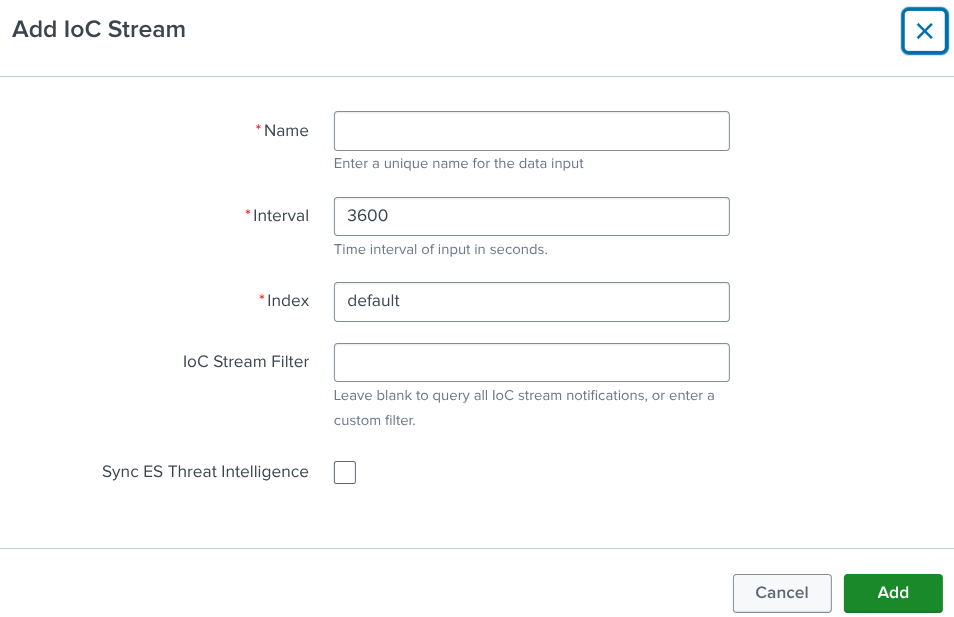
Finally, click the Sync ES Threat Intelligence button to allow you to ingest this stream into Splunk Enterprise Security Threat Intelligence tables.
In order to be able to view the IoC Stream dashboard, which will be explained later, you must first complete this configuration.
4.3.3. Vulnerability Intelligence settings
While the pre-configured input is often sufficient, you can also create additional inputs if needed. Follow these steps to manage or create CVE inputs:
- Access Configuration: navigate to Configuration -> Inputs.
- CVE Management:
- View the list of currently configured CVE.
- Edit, delete, or enable/disable existing CVE.
- Create New CVE:
- Click Create Input.
- Select CVE.
- Fill out the creation form:
- Name: enter a name for your CVE configuration.
- Interval: set an interval in seconds.
- Index: it is pre-configured to gti_cve_internal.
- Risk Rating: select risk ratings for your data input.
- Exploitation State: select exploitation states for your data input.
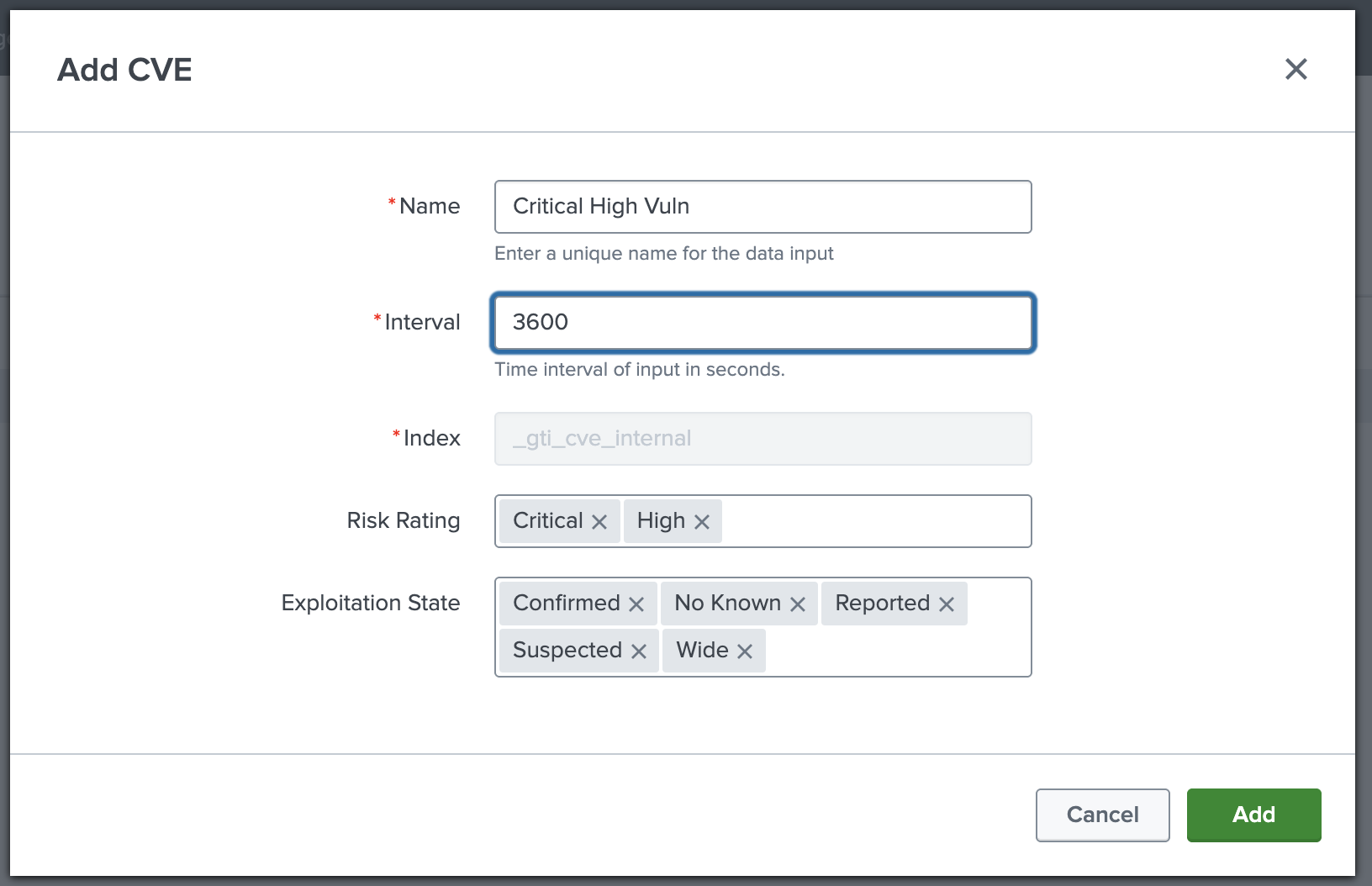
Once the form is submitted, the ingestion of CVEs will begin.
5. Integration Usage
5.1. Digested Intelligence Dashboards
Once that you finished the configuration process you will have these dashboards:
5.1.1. Threat Intelligence view
Summarizes malware activity in your environment. For example, we can ask ourselves this question: "Did we contact any malicious URLs or domains yesterday?".
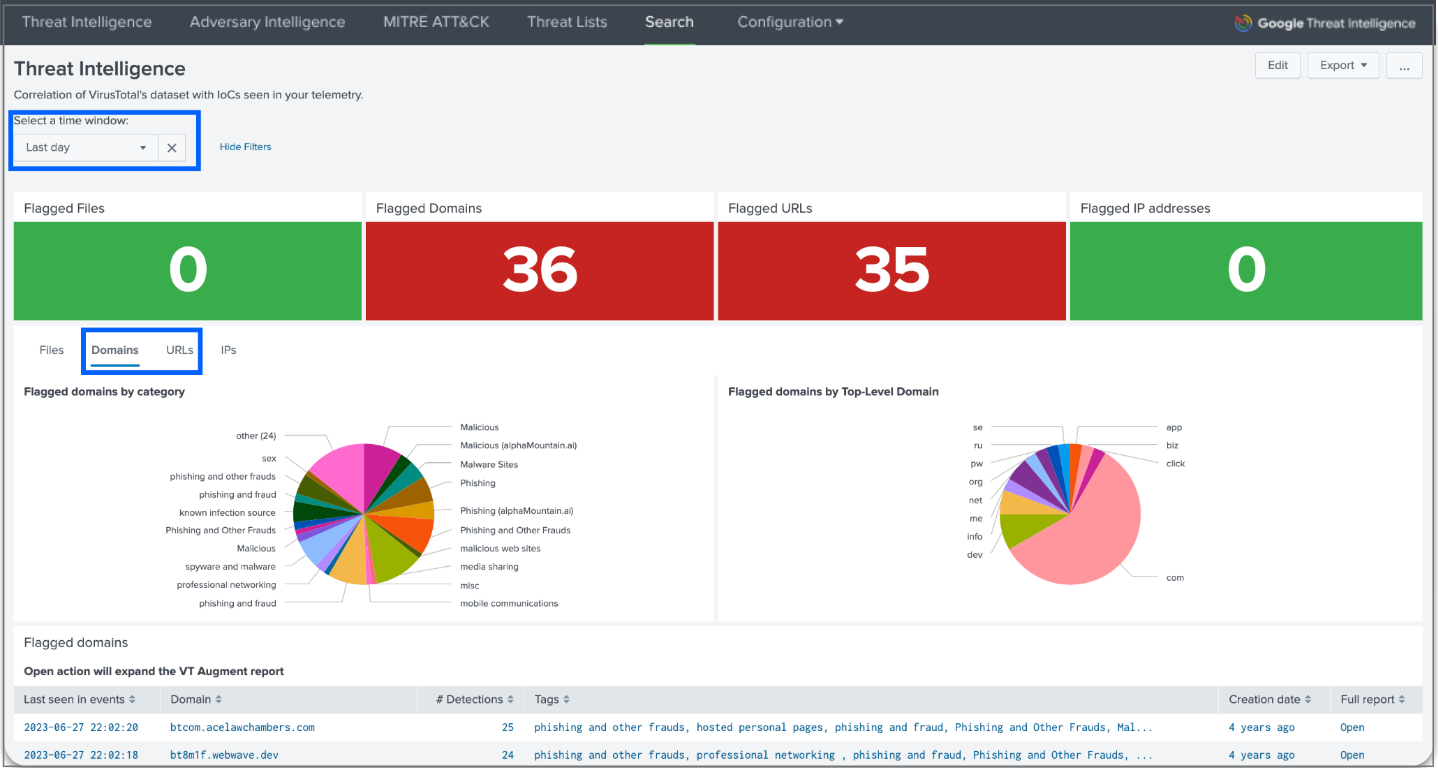
For instance, to answer this question you can select the last day in the time window and domains or URLs as a filter. You will see the flagged domains, as well as some graphs showing the results by category, by Top-Level domain and by verdict. You can even expand the VT Augment report for each flagged domain to get more details directly in the app.
5.1.2. Adversary Intelligence view
Find out if the IoCs from your events are somehow related to a campaign, malware family, threat actor or IoC collection object.
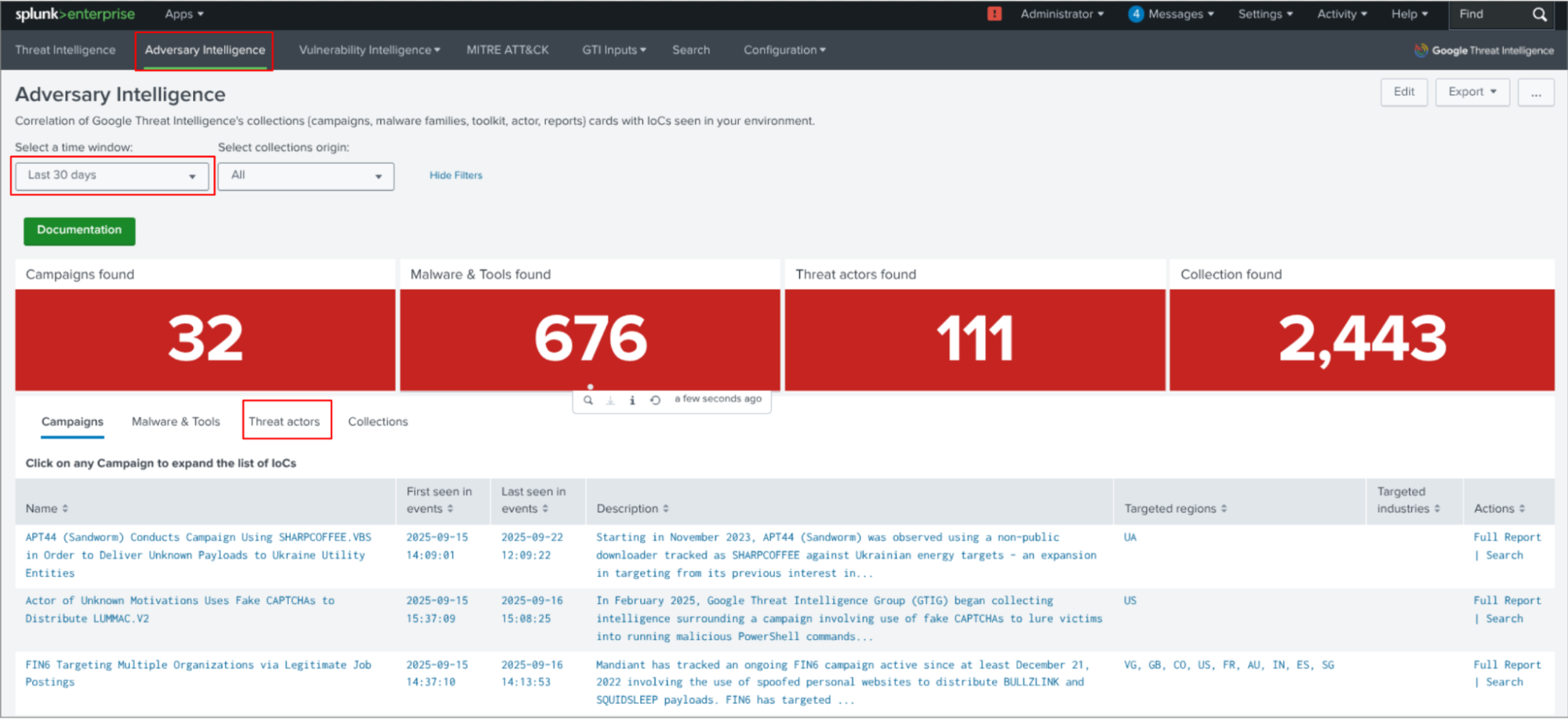
In the previous image we can see the Threat actors are related to the indicators of compromise found in the events.
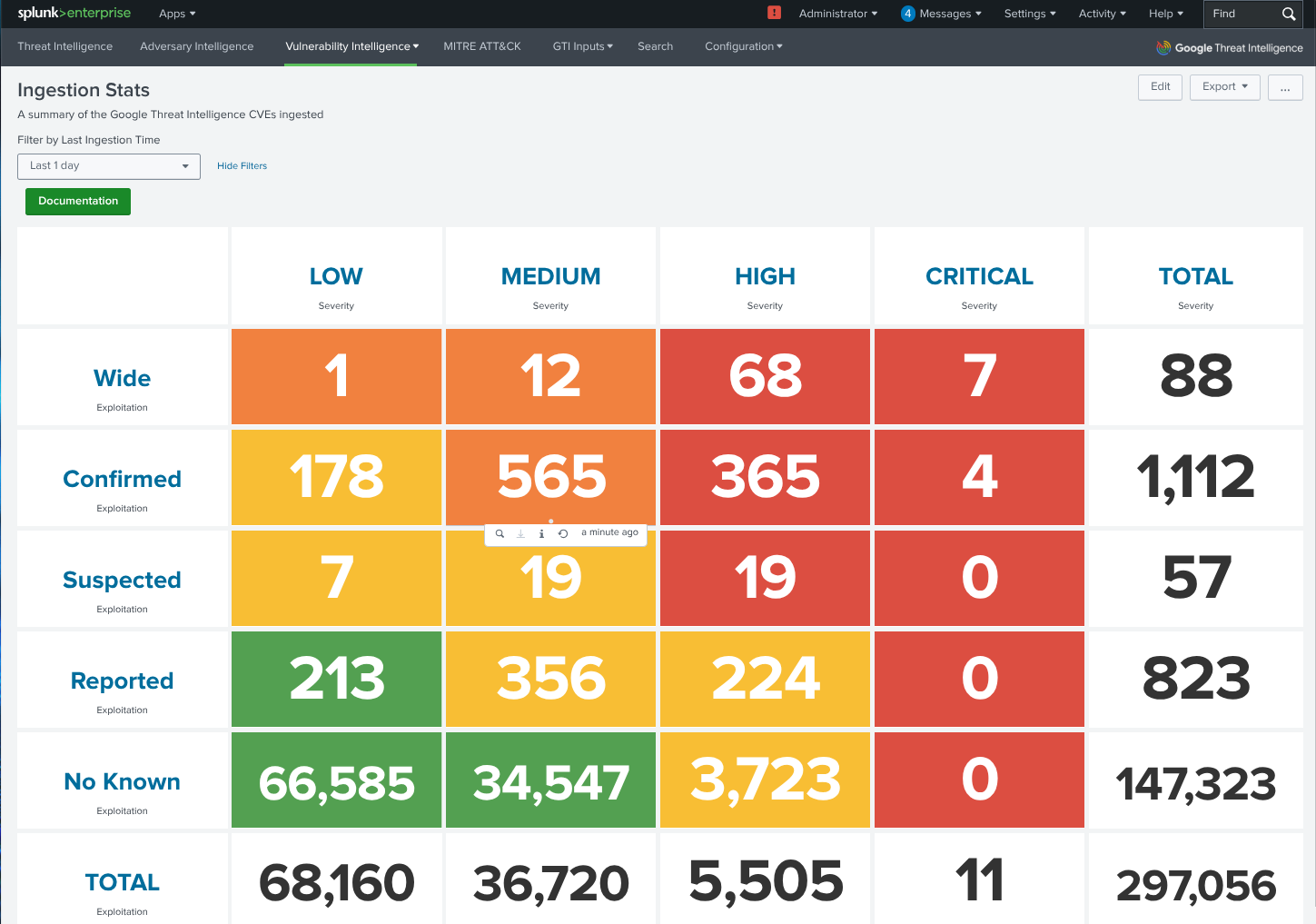
5.1.3. Vulnerability Intelligence view
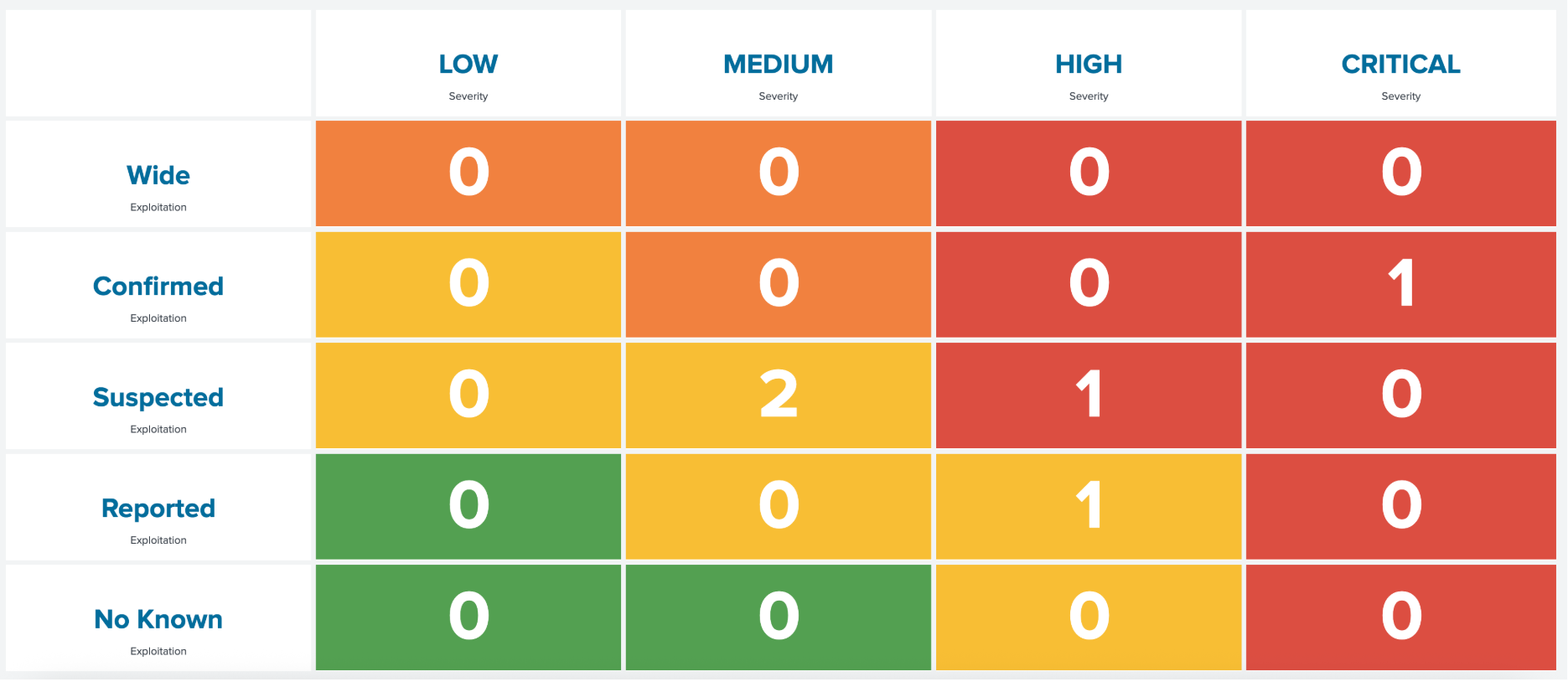
Allows you to identify and prioritize known exploited vulnerabilities that are directly impacting your environment. It achieves this by correlating CVE identifiers found in your event data using a Vulnerability Scanner with the comprehensive CVE information ingested from Google Threat Intelligence.
In this section you can find several views including:
- Vulnerability overview: provides crucial insights into Common Vulnerabilities and Exposures (CVEs) present within your organization's local Splunk events.
- Vulnerability details: provides a detailed, host-centric view of vulnerabilities identified within your environment, leveraging the correlation search results that match your internal CVEs with Google Threat Intelligence data. It helps you quickly identify which hosts are most at risk, what types of vulnerabilities they possess, and which specific CVEs are impacting them.
- CVE ingestion stats panels: provides a comprehensive view of Common Vulnerabilities and Exposures (CVEs) ingested from Google Threat Intelligence. This information is crucial for enriching the CVE data found in your own systems, giving you a more complete picture of potential threats.
5.1.4. MITRE ATT&CK view
Provides a visualization and analysis of threats within your environment mapped against the MITRE ATT&CK framework. It helps identify tactics and techniques used by adversaries, enabling more effective threat detection and response.
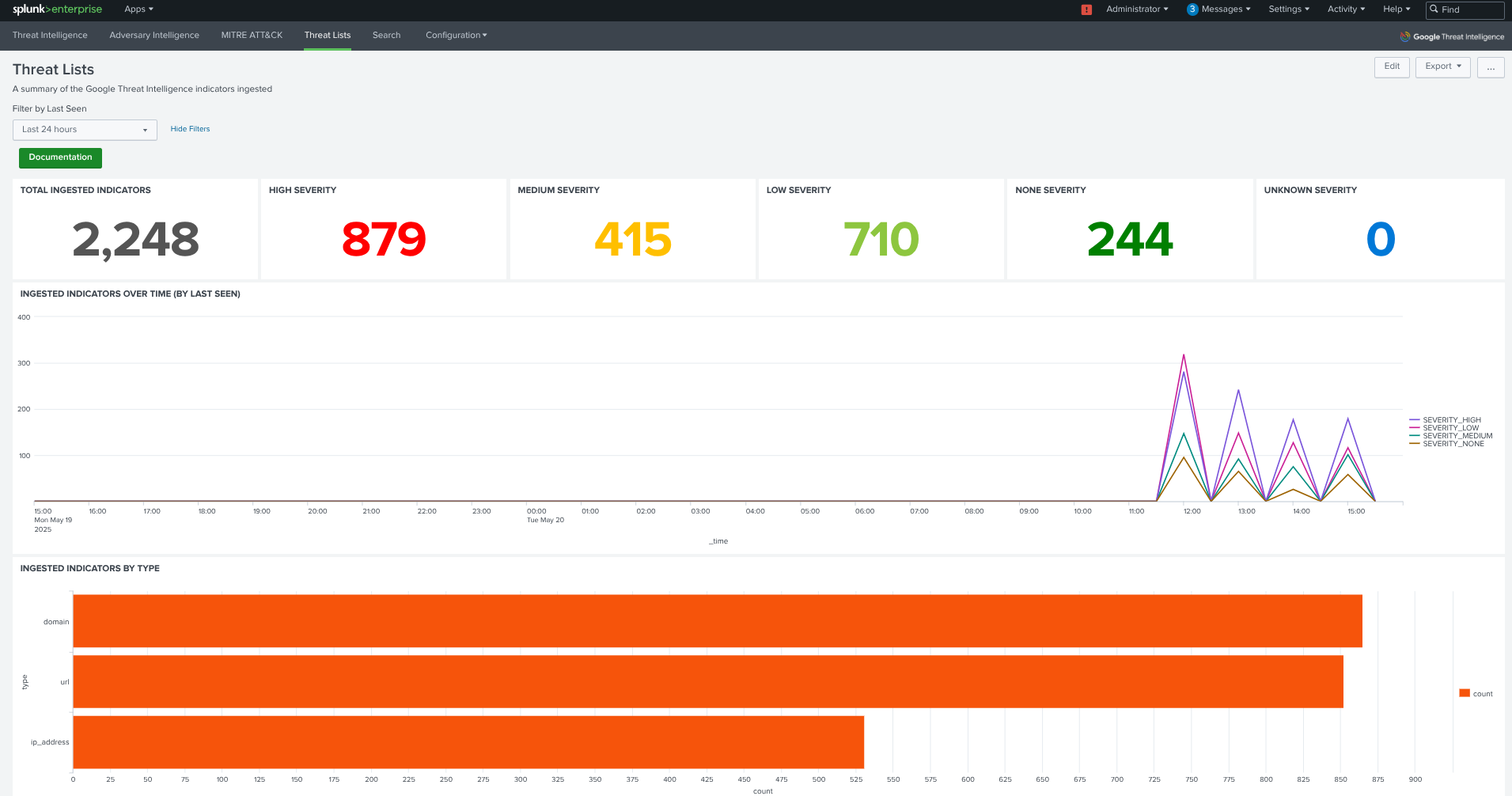
5.1.5. Threat List view
Displays information about the ingested Threat Lists. It includes the following components:
- Time Picker: allows selection of a time window for analysis.
- Threat Counts by Severity: displays the number of threats categorized by severity.
- Ingested IoCs Over Time: a graph showing the number of IoCs ingested per hour, categorized by severity.
- IoCs by Threat List: a chart showing the quantity of IoCs ingested, classified by Threat List.
- IoCs by IoC Type: a chart showing the quantity of IoCs ingested, classified by IoC type.
5.1.6. IoC Stream view
Displays information about the ingested IoC Stream. It includes the following components:
- Time Picker: allows selection of a time window for analysis.
- Counts by Severity: displays the number of threats categorized by severity. These IoCs with NULL severity are not curated.

- Ingested IoCs Over Time: a graph showing the number of IoCs ingested per hour, categorized by severity.
- IoCs by IoC Type: a chart showing the quantity of IoCs ingested, classified by IoC type.
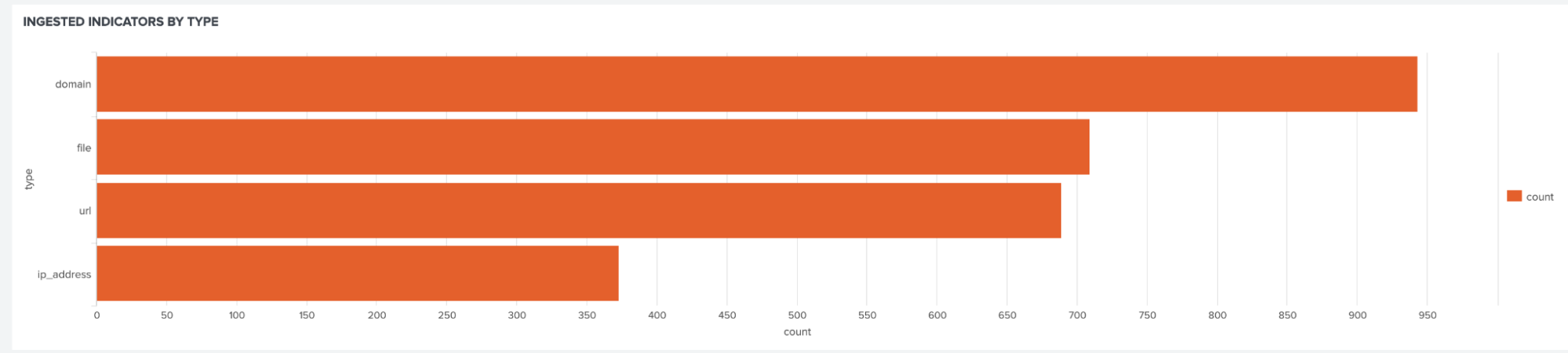
- IoC Stream Chart by IoC Stream type
- IoCs by IoC Stream Source type: a chart showing the quantity of IoCs ingested, classified by the type of the IoC Stream.
- IoCs by IoC Source: a chart showing the quantity of IoCs ingested, classified by the source of the IoC Stream.
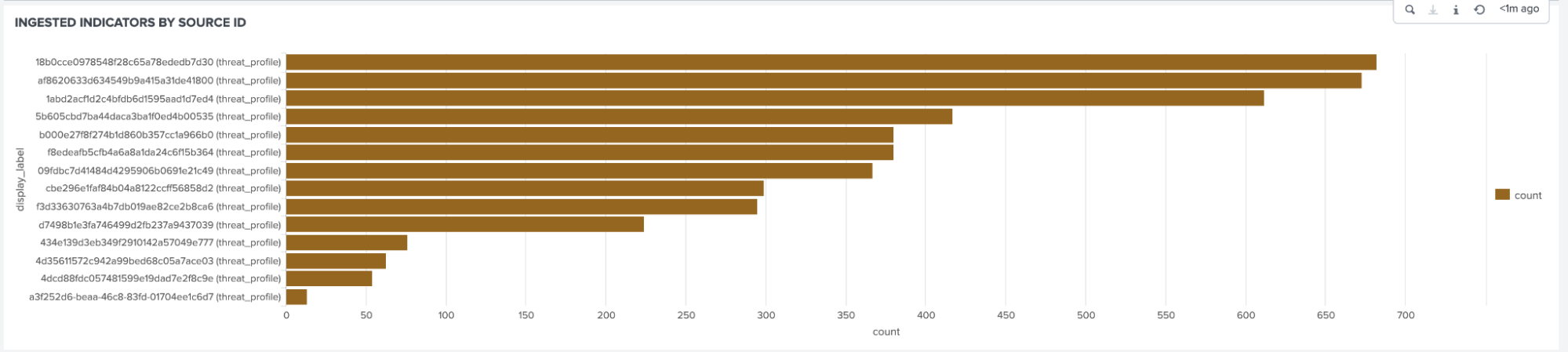
- IoC Stream group by source id.
5.2. Specific Google TI Splunk searches
The Splunk integration app provides a main command gti to correlate IoCs found in your events with the Google Threat Intelligence information.

Adding the command gti to a Splunk Search Processing Language (SPL) query will enrich events which contain the fieldname passed as argument, adding new fields to the event in search time with the prefix gti_.
Some query examples are:
-
Look for contacted IP addresses that have been categorized as Command and Control:
index="Proxy" sourcetype="ProxyLogsOutbound" | gti ip=ipaddress | search gti_collections_names="*C2*" -
Search for contacted IP addresses that are TOR exit nodes:
index="Proxy" sourcetype="ProxyLogsOutbound" | gti ip=ipaddress | search gti_tags=tor -
Find malicious autoruns in your endpoints:
index="EDR" sourcetype="Autoruns" | gti hash=sha256 | search gti_detections > 0 -
Look for malware that has been seen for the first time in the wild during this year:
index="EDR" sourcetype="Alerts" | gti hash=sha256 | search gti_detections > 0 gti_first_submission=2025-*
Updated 11 months ago