
Saved Searches
The Saved Searches feature is designed to empower users to efficiently store and reuse complex or frequently executed threat intelligence searches across our vast database of IoC analysis reports (files, URLs, domains, IP addresses).
Instead of manually reassembling the required search modifiers for a specific use case every time a search has to be performed, you can save the entire configuration under a unique, descriptive name and run it repeatedly with a single action. This ensures consistency, accuracy, and significant time savings across all operational use cases.
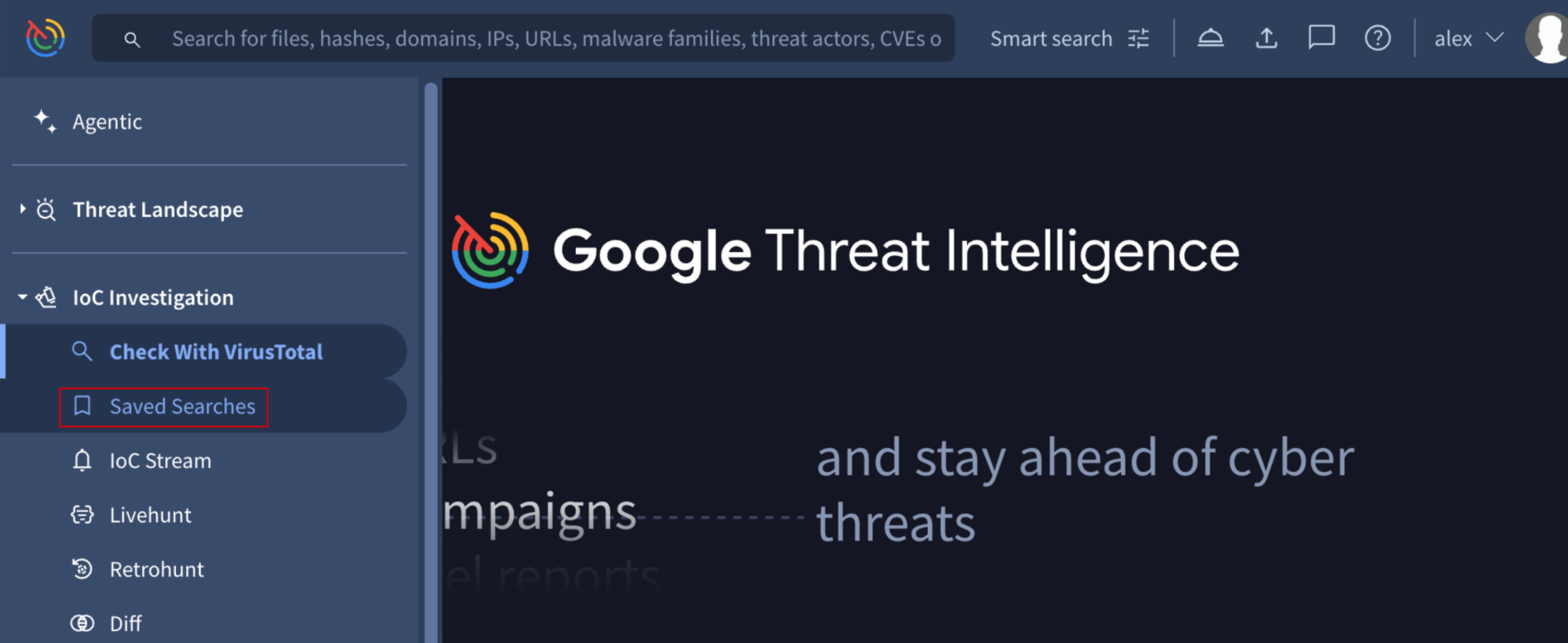
The queries management interface is accessed through the left menu navigation bar via IoC Investigation -> Saved Searches.
Here, the SAVED SEARCHES tab view provides a comprehensive list of all queries to which the user has access, whether as Owner, Editor or Viewer. This view defaults to displaying searches owned by the user, and includes both robust filtering capabilities to narrow queries and full management controls for complete administration.
1. Saving a Search - Creating a Saved Search
The process of creating a new saved search allows you to store complex search logic for instant reuse later, and you automatically become the Owner of the saved query. Creation can be initiated from 3 places:
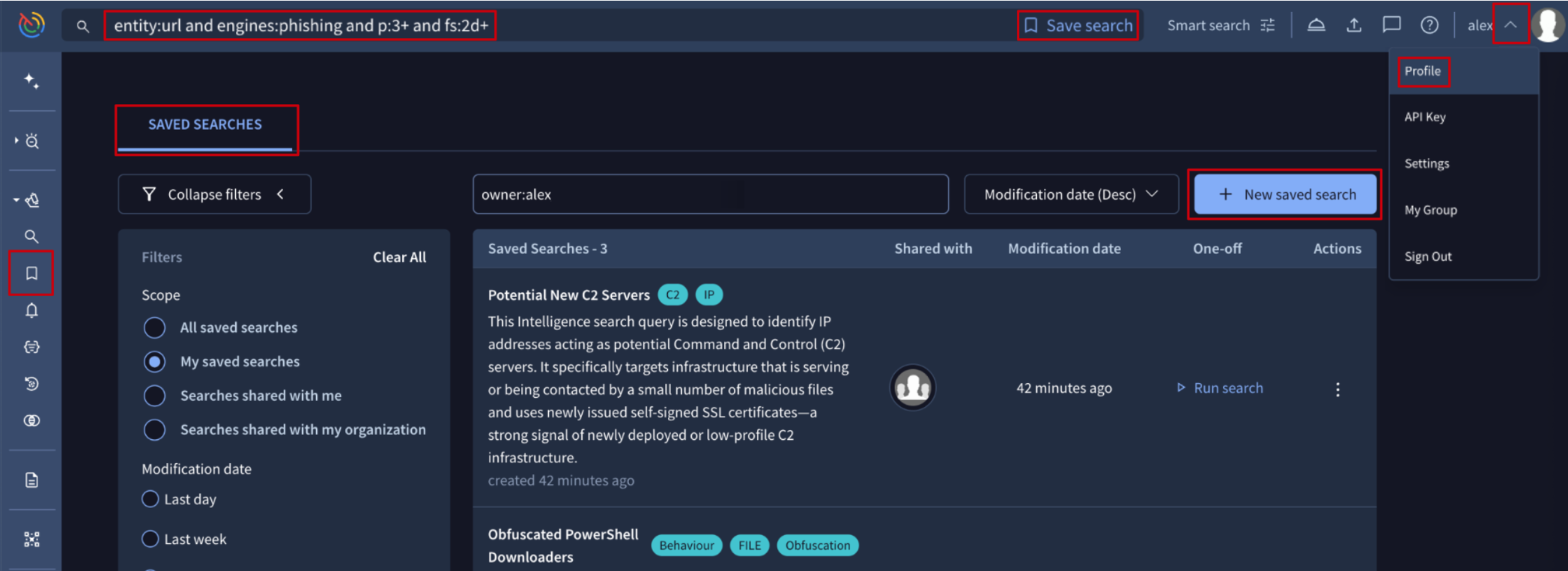
- From the left menu navigation bar, go to IoC Investigation -> Saved Searches. Then, within the SAVED SEARCHES tab, click the + New saved search.
- From the user menu at the top-right corner, select the Profile menu option. Then, within the SAVED SEARCHES tab, click the + New saved search button.
- After entering an IoC-related query, click the Save search button that appears near the top search bar.
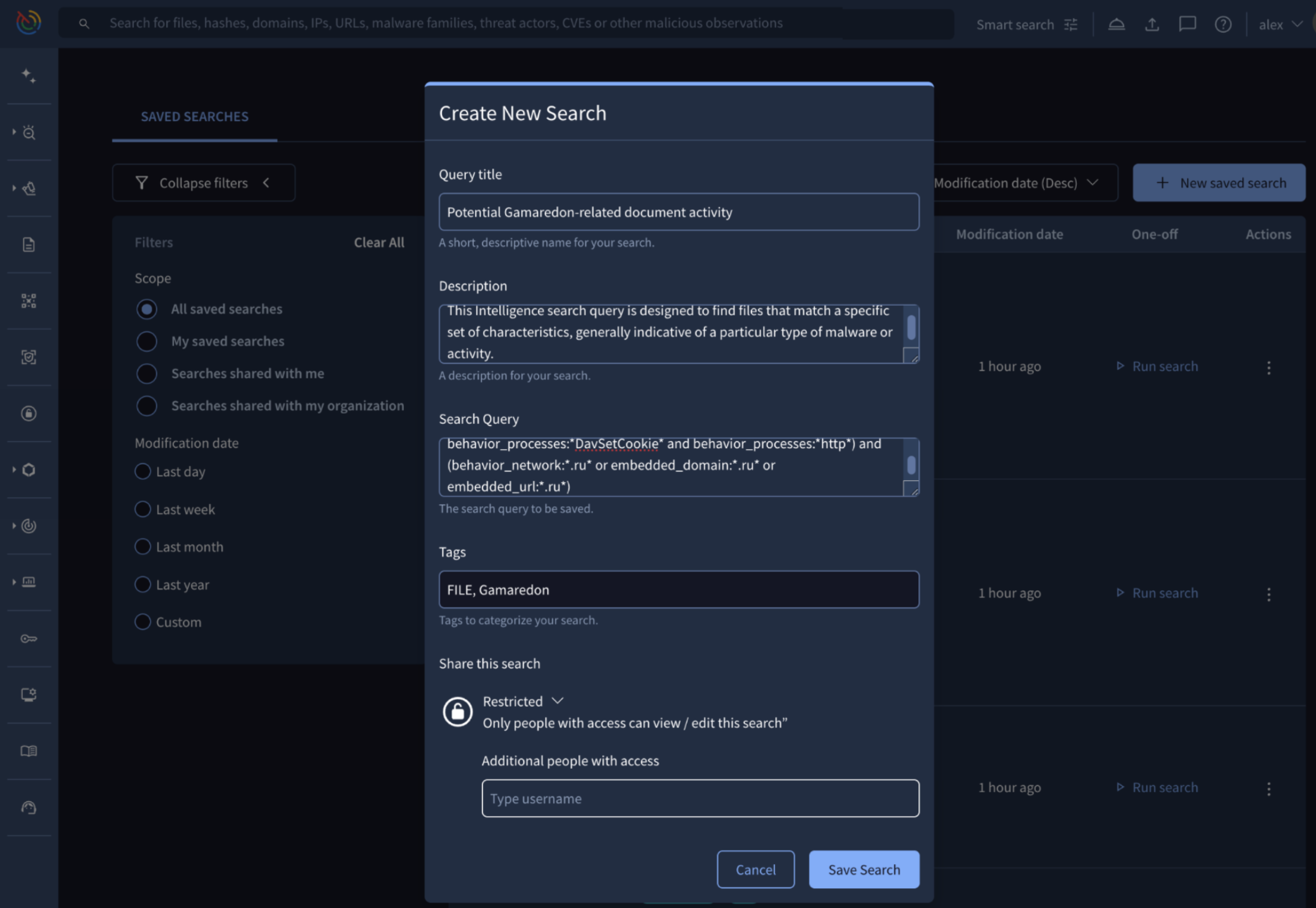
In all creation scenarios, a configuration form will appear, prompting you to define the search's Name alongside a Description and Tags for more context, and the Search Query which is automatically populated if the saving process was initiated directly from the top search bar.
Beyond the mandatory settings, you can Share your search with specific users, your organization or the entire community. See Editing Saved Search's Attributes & Access section for additional details.
1.1. Running a Saved Search - Reusing Queries
Saved searches are designed for instant, on-demand reuse, regardless of users’ specific role (owner, editor, or viewer).
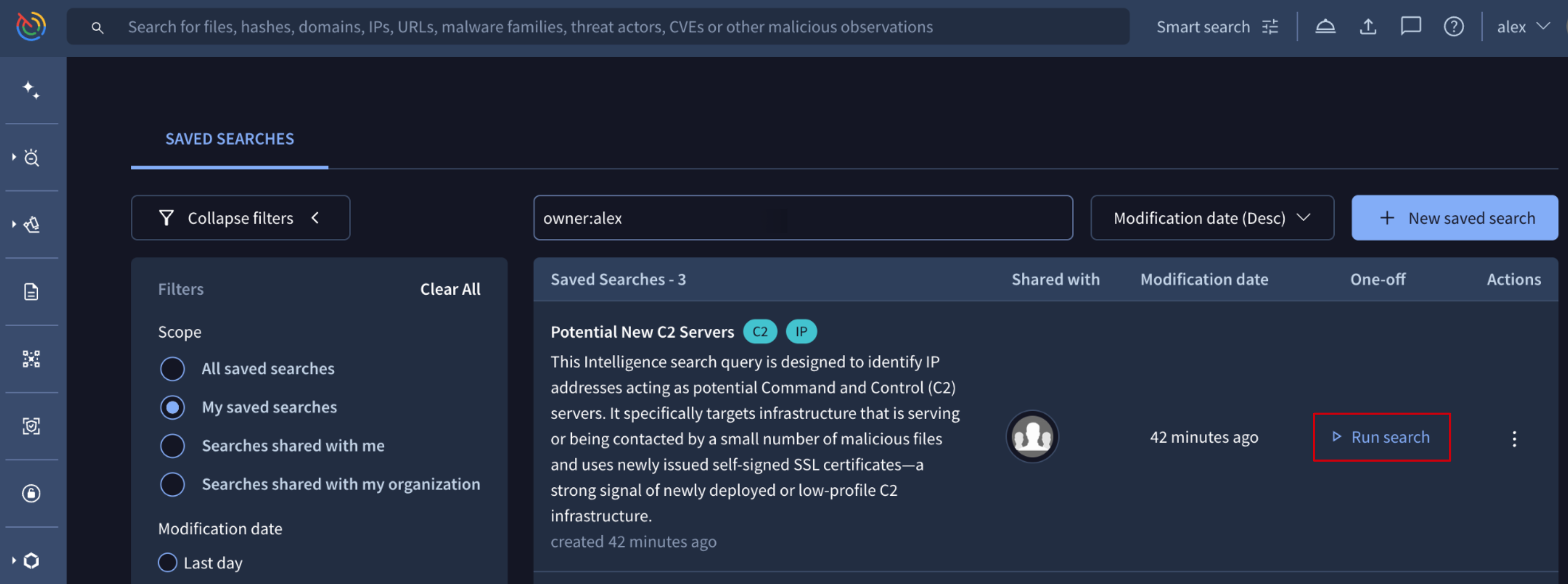
To execute a saved query, simply navigate to the SAVED SEARCHES view and click the Run search button corresponding to the desired entry.
Executing the query instantly applies the stored logic to the main search bar, automatically displaying the resulting list of matching IoCs. This action fully empowers the user by granting access to available IoCs filtering, sorting, exporting and additional investigative capabilities leveraged from the results view via the Tools option.
3. Managing Saved Searches
3.1. Filtering Saved Searches
The SAVED SEARCHES tab features a consistent and comprehensive set of filtering options. These options allow users to efficiently narrow and focus the displayed lists based on specific criteria:
- Scope filters: these filters focus on how the user gained access to the saved searches, allowing lists to be narrowed based on categories such as: searches the user owns, searches shared directly with the user, searches shared with the user's organization, or all of them.
- Modification Date filters: users can filter saved searches by standard presets (Last Day, Week, Month, Year) or define a custom timeframe.
3.2. Editing Saved Search's Attributes & Access
Only the Owner and users granted Editor privileges can modify a saved search.
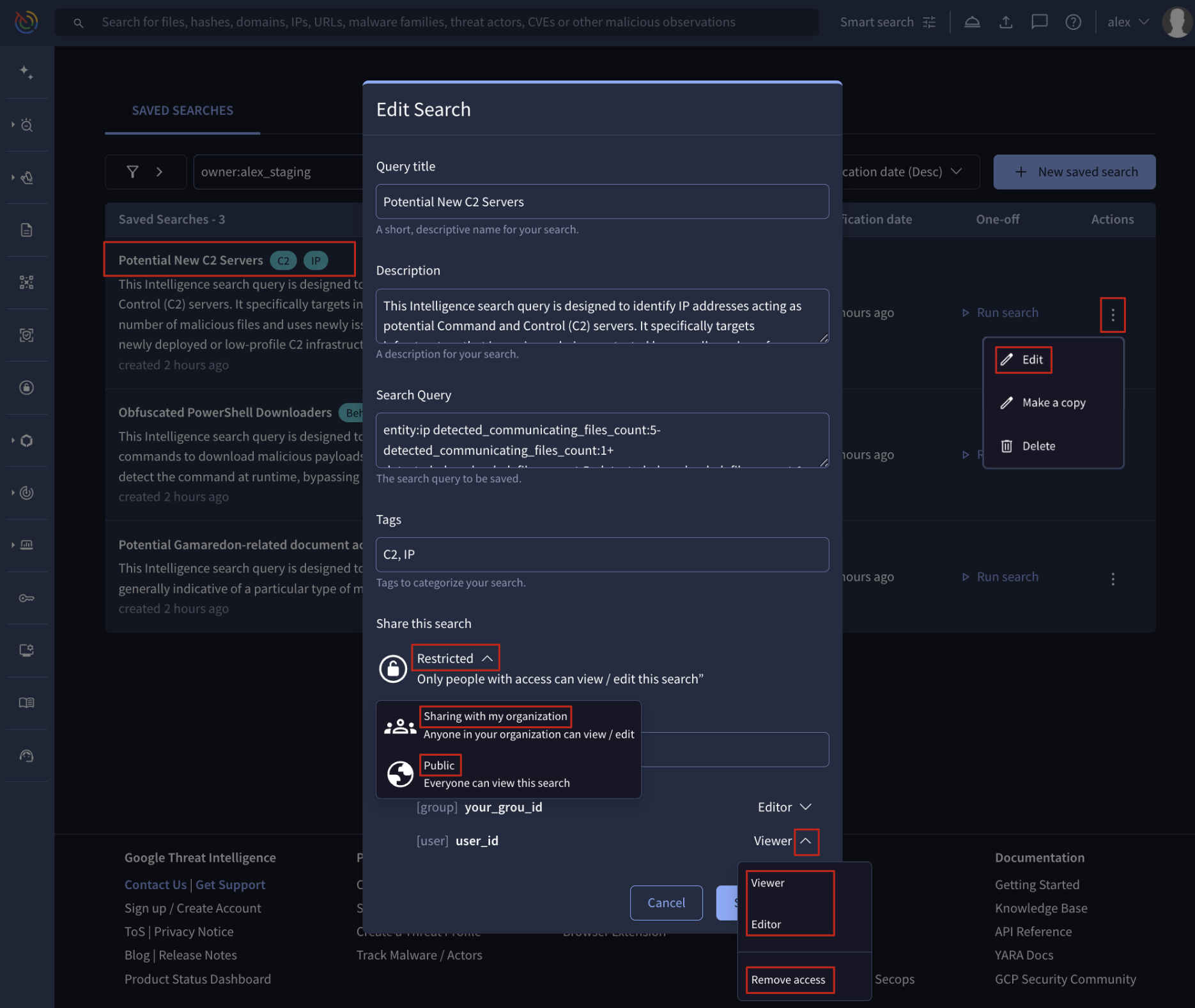
A saved query can be edited from the SAVED SEARCHES view by simply clicking its name or description, or by selecting the Edit option from the corresponding Action menu dropdown.
This action displays the full configuration form, where editors can modify all query parameters, including the underlying search logic and its Sharing configuration.
The Sharing section displays 3 dropdown options:
- Restricted (private): view and edition access is limited to users with whom it is explicitly shared by adding the user identifier in the text box immediately below.
- Sharing with organization (private): view and edition access is extended to all users within the owner's organization, depending on whether the owner/editor selects the Editor or Viewer privilege option. Specific access privileges can still be granted to individual users by entering their user identifier in the text box immediately below.
- Public: view access is extended to the complete community members. Specific access privileges can still be granted to individual users by entering their user identifier in the text box immediately below.
The same Sharing section allows for the removal of access for specific users or the owner's group by selecting the Remove Access option from the dropdown menu located near their user/group identifiers.
Note that editor privileges can only be granted to members belonging to the same group or organization as the owner of the saved search.
3.3. Deleting a Saved Search
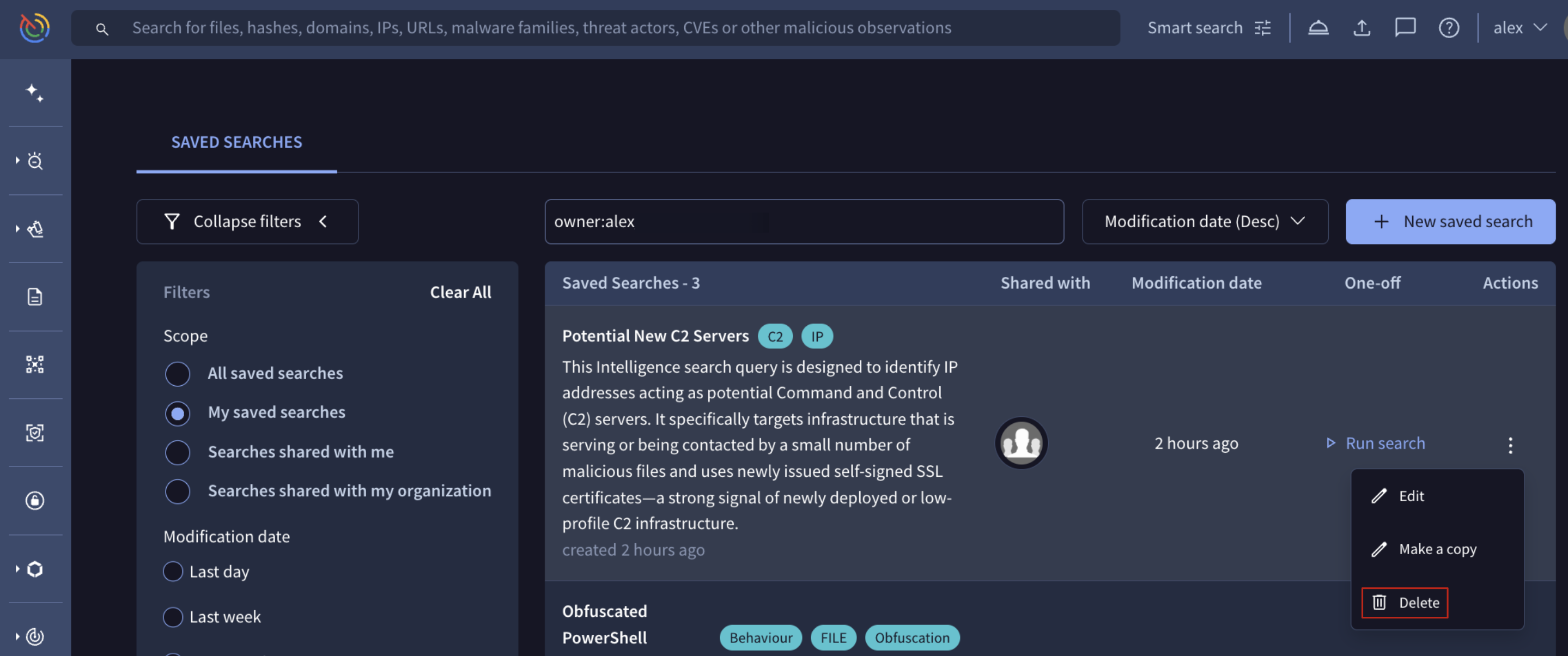
Only the Owner can delete an existing saved search. This is done from the SAVED SEARCHES view by clicking the Action menu corresponding to the query, and selecting the Delete option from the dropdown menu. Deleting the query removes it from the SAVED SEARCHES view for all users who previously had access to it.
3.4. Making a copy of a Saved Search
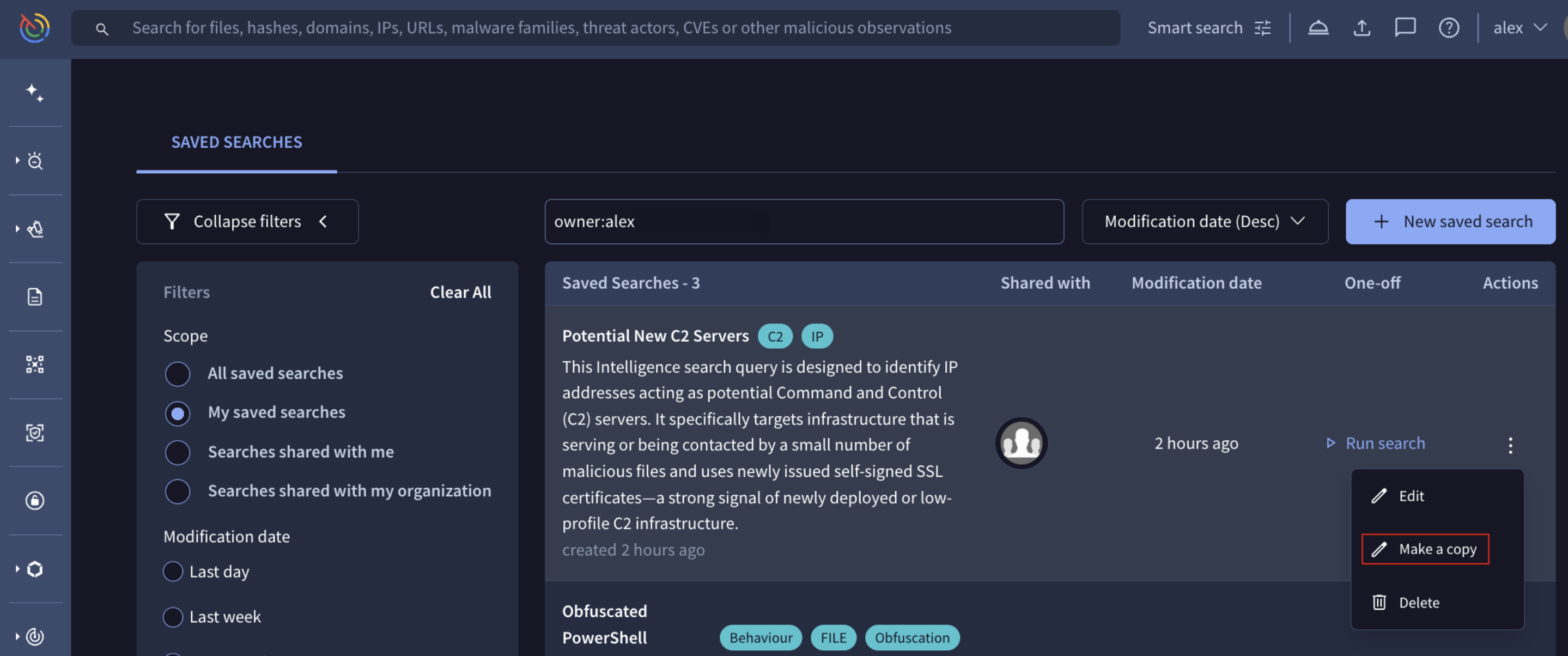
The Make a copy feature is available to all users with any access level (owner, editor, or viewer) who have access to the saved search. To duplicate a query, simply navigate to the SAVED SEARCHES view, click the Action menu corresponding to the query, and select the Make a copy option from the dropdown menu which instantly creates an independent copy of the search logic with its own ID for the user to edit and customize at its discretion.
This functionality is crucial for two main reasons:
- Modification: it allows viewers to modify the search logic without affecting the original, shared query.
- Data Preservation: it serves as an essential backup mechanism, especially since a query can be permanently deleted by its owner or modified by any user with editor privileges at any time.
We highly recommend utilizing the Make a copy feature for any saved search shared with you that might be relevant to your operational workflow.
Updated 10 months ago