
Flows
Learn how to automate recurring investigations by scheduling prompts and saved searches with Agentic Flows.
Public previewThis feature is currently in Public Preview. Active Flows are limited based on your package tier.
We’d love your feedback! Share your thoughts, bug reports, or feature requests via this form.
Special privileges requiredFlows is part of the Agentic platform and is only available to users with the Google Threat Intelligence (Google TI) Enterprise or Enterprise Plus licenses.
Flows lets you automate your investigations. Instead of asking a question or running a search manually each time, you can schedule a prompt — or one of your saved searches — to run automatically and have the results stored for later review or, for prompts, delivered straight to your inbox.
Table of contents
What is a Flow?
A Flow is an automated workflow: a fixed sequence of nodes that run one after another.
Each node performs one step of the workflow:
- Schedule Time — the trigger that defines when the Flow runs.
- Run Prompt — an action that sends a prompt to the agent.
- Run Saved Search — an action that runs one of your saved searches and stores the matching results.
- Send Email — an optional notification step that emails the result to one or more recipients.
Every Flow has exactly one trigger (Schedule Time) and one action (Run Prompt or Run Saved Search). The optional Send Email step is available for Run Prompt Flows only.
Supported layouts
The platform supports the following configurations (topologies):
- Layout A (2-node Flow):
Schedule Time → Run Prompt
Runs a prompt on a schedule. The execution results are stored in the platform for you to view later. - Layout B (3-node Flow):
Schedule Time → Run Prompt → Send Email
Runs a prompt on a schedule and emails the output to the specified recipients. - Layout C (2-node Flow):
Schedule Time → Run Saved Search
Runs a saved search on a schedule and stores the matching results in the platform for you to review later.
NoteEmail delivery is available for Run Prompt Flows only. Run Saved Search Flows always store their results in the platform, so they don't include a Send Email node.
How to create a Flow
Accessing Flows
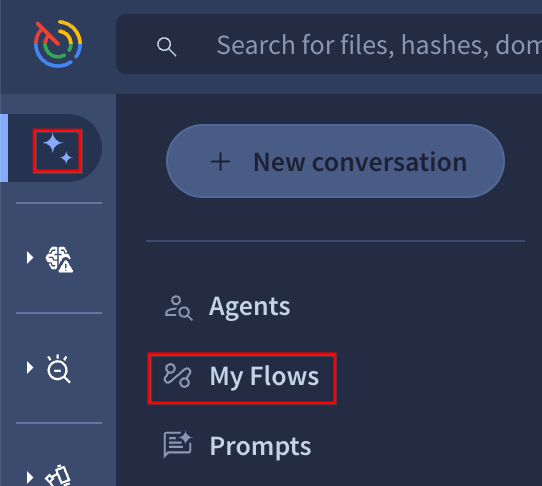
Open the Agentic section from the left navigation bar (the ✨ icon), then select My Flows. Click + New flow to start building one.
Give your Flow a descriptive name, then configure a trigger, one action node (Run Prompt or Run Saved Search), and — for Run Prompt Flows — an optional notification:
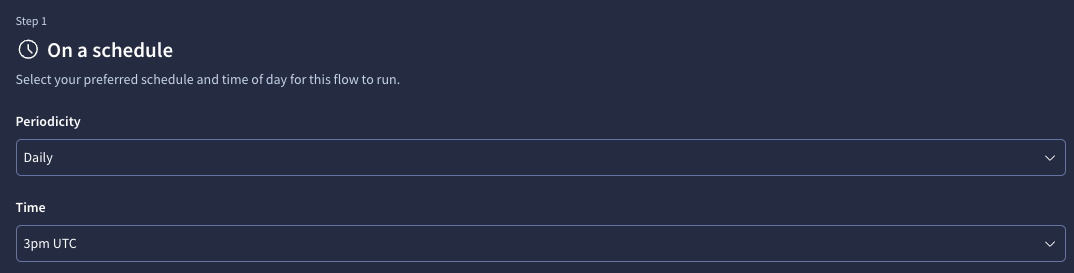
1. Trigger — Schedule Time node
This node defines when the Flow will run. You can configure the schedule directly in the UI by selecting the periodicity (for example, daily or weekly) and the start time.
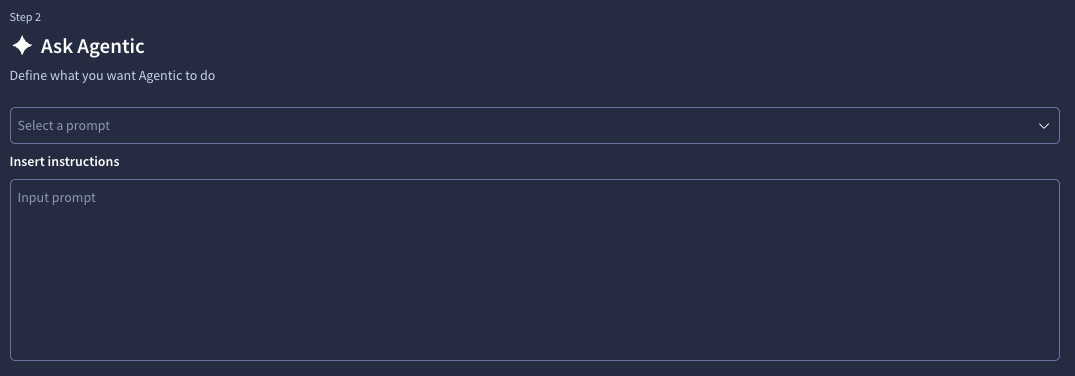
2. Action — Run Prompt node
This node defines the prompt message sent to the agent.
- Prompt: write your own instructions in natural language, exactly as you would in a regular Agentic conversation, or pick a ready-made template prompt from the Select a prompt dropdown.
TipUse relative time terms such as "in the last 24 hours" or "since yesterday" so that each automated run returns fresh data.
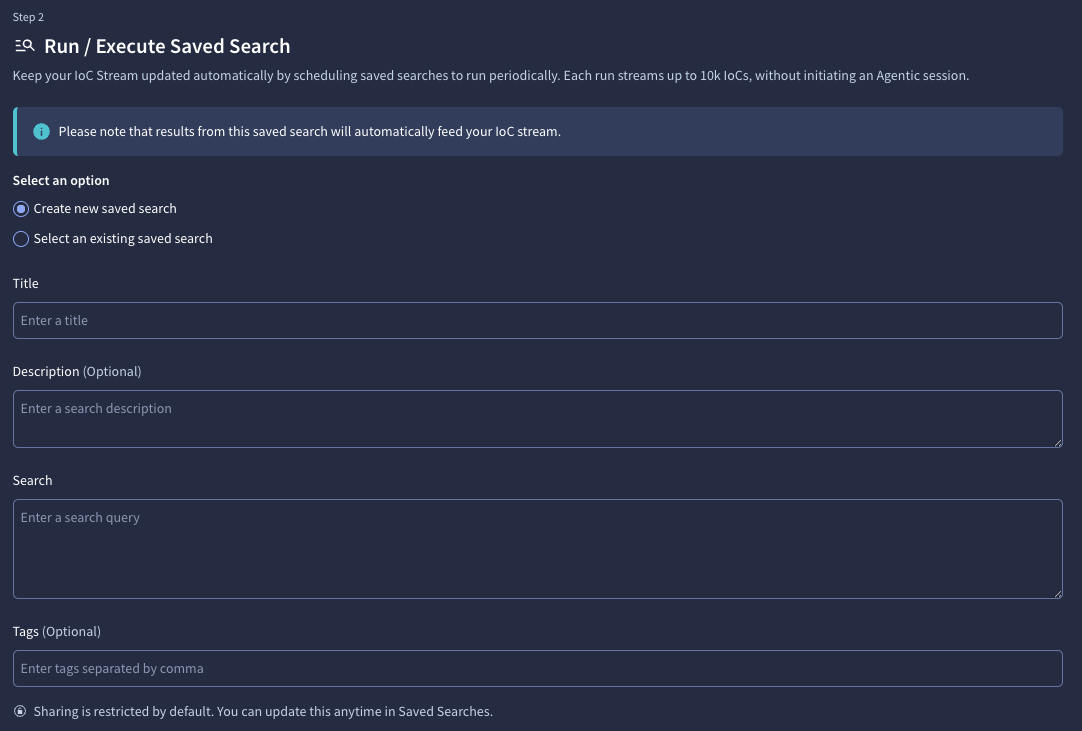
3. Action — Run Saved Search node
Use this node instead of Run Prompt when you want to re-run a saved query on a schedule. Each time the Flow triggers, it runs the selected saved search and stores the matching results in the platform.
- Saved search: either select an existing saved search you already own, or create a new one inline (title, optional description, the search query, and optional tags). See the Saved Searches guide for more.
NoteRun Saved Search Flows store their matches in the platform and don't support the Send Email node. Review the results from the execution history (see Monitoring executions).
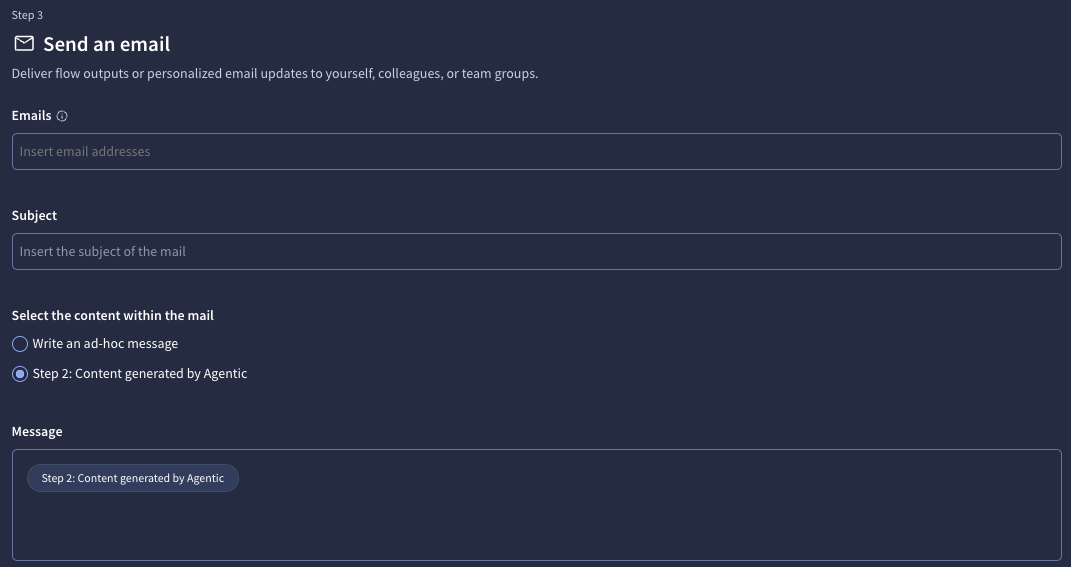
4. Notification — Send Email node (optional)
This node sends the prompt results to one or more email addresses. It is available for Run Prompt Flows only.
- Recipients: a comma-separated list of email addresses.
- Content: choose what the email carries — write an ad-hoc message, or send the content generated by Agentic in Step 2 (the prompt's output).
Each notification email includes an unsubscribe link. Unsubscribing stops emails from that specific Flow only — it doesn't affect other recipients, or that recipient's emails from other Flows.
Managing your Flows
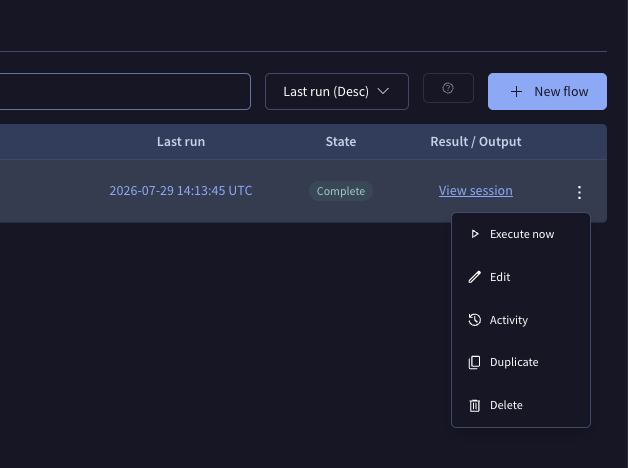
From the Flows list you can manage any Flow you own:
- Run now (Execute now): trigger a Flow immediately instead of waiting for its next scheduled run — handy to test that it's configured as expected. Running a Flow manually works even when the Flow is disabled.
- Enable / disable: turn a Flow on or off at any time. A disabled Flow stays saved but won't run on its schedule until you re-enable it; you can still trigger it manually with Run now.
- Edit: update a Flow's name, schedule, prompt or saved search, and recipients.
- Activity: review the Flow's activity history — the changes made to it and when.
- Duplicate: create a copy of an existing Flow to use as a starting point for a new one.
- Delete: permanently remove a Flow you no longer need. Deleting a Flow also deletes its execution history.
Monitoring executions
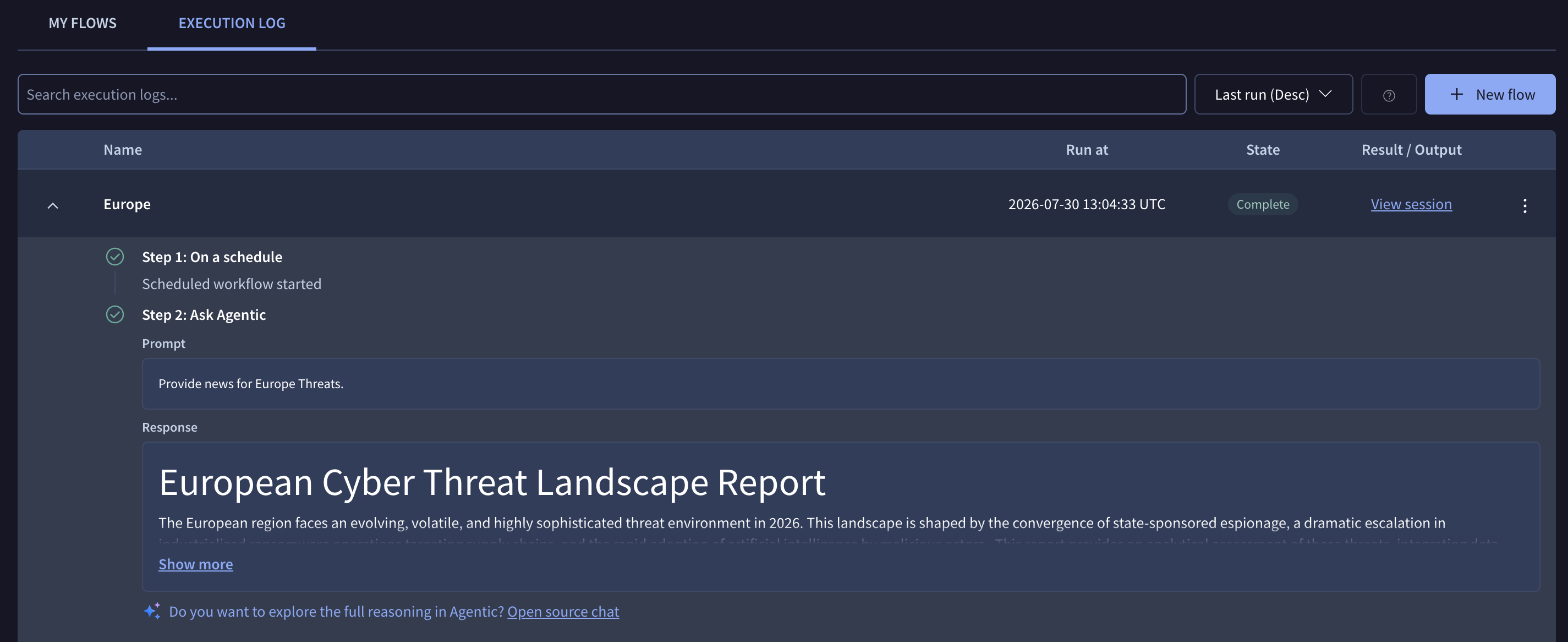
You can monitor your Flows directly in the UI:
- Flow status: shows whether the Flow is enabled or disabled.
- Execution history: lists past runs with their status:
- RUNNING — the Flow is currently executing.
- COMPLETED — the Flow finished successfully.
- FAILED — an error occurred during execution.
- Logs / outputs: click on a past execution to view the input and output of each node (for example, the prompt response, the saved-search matches, or the email dispatch status).
- Open the full session: from a Run Prompt node's output you can click through to the underlying Agentic session to see the agent's full reasoning and tool calls. A Flow's sessions also appear in the left sidebar of the Agentic platform, alongside your usual conversations.
Data PrivacyPlease do not include any personal or sensitive information in your prompts or recipient lists. You are responsible for the content of your submissions.
Flows is unavailable if AI features have been disabled for your account or group (see the Agentic platform's Privacy and AI tools disablement section).
Updated 5 days ago