
Mail Hub
Configure and manage every email you receive from Google Threat Intelligence, from scheduled intelligence digests to immediate My Landscape alert notifications and communication preferences.
Overview
The Mail Hub centralizes the configuration of all email notifications sent by Google Threat Intelligence. Email settings previously located in the user settings are now grouped in a dedicated Mail Hub tab with three sub-tabs: Threat Intelligence digests (scheduled daily or weekly summaries of finished intelligence, vulnerability intelligence and Threat Profile updates), Alerts (immediate notifications when Google Threat Intelligence generates or escalates a My Landscape alert that matches your criteria) and Comms subscriptions (account, product, research and event communications).
This guide is intended for all Google Threat Intelligence users and covers the Mail Hub web interface only. It describes how to create and manage digests and alert notifications, select communication subscriptions, unsubscribe from emails and resolve common delivery issues.
Prerequisites
Before configuring email notifications in the Mail Hub, verify the following:
- You can sign in to Google Threat Intelligence with your user account. All emails are sent to the email address associated with that account; confirm that the address is correct and that your mail server accepts messages from Google Threat Intelligence.
- To set up Alerts notifications, you can see alerts in My Landscape -> Alerts (see the license requirements in Step 3). Users do not create alerts: Google Threat Intelligence generates them automatically while it monitors your organization profile and domains and detects threats targeting your infrastructure. In the Mail Hub, you create only the alert notification rules that determine which of those alerts are sent to you by email.
- To create a Threat Profile Digest, at least one Threat Profile exists in your group.
- If you belong to more than one group, the correct group is selected as your active group, because alert notification rules are linked to the group that is active when they are created.
Steps
Step 1: Open the Mail Hub
- Click your user avatar in the top-right corner of Google Threat Intelligence.
- Select Settings.
- Open the Mail Hub tab, next to User settings and Activity. Alternatively, go directly to the Mail Hub.
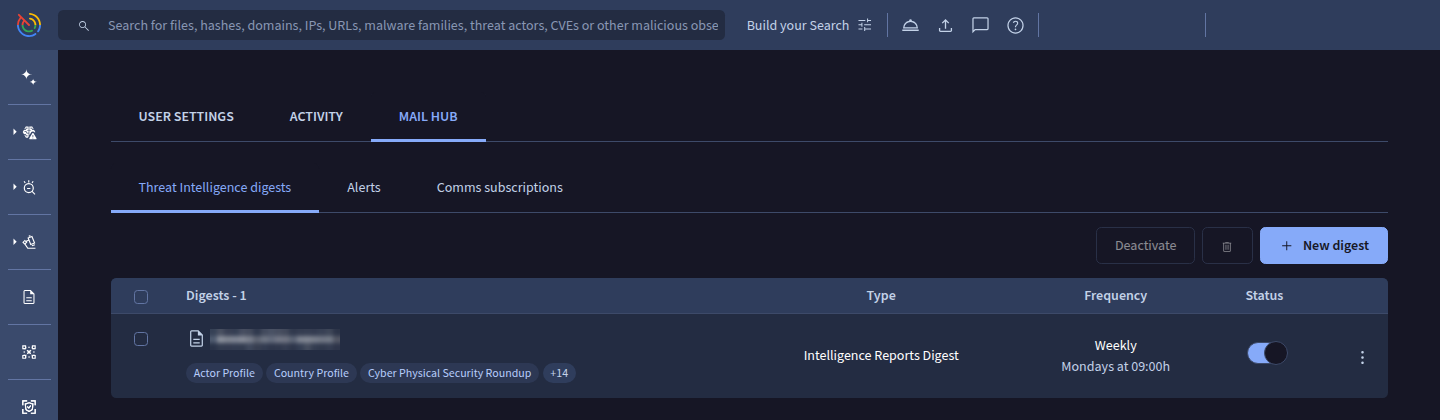
All email notifications are delivered to the email address associated with your account.
Notifications are scoped to your active groupAlert notifications are linked to the group (organization) that is active when they are created. If you belong to more than one group, switching your active group displays only the alert notifications configured for that group.
Step 2: Create a Threat Intelligence digest
Digests are scheduled email summaries of finished intelligence, vulnerability intelligence and your Threat Profiles, delivered daily or weekly.
- Go to Settings -> Mail Hub -> Threat Intelligence digests.
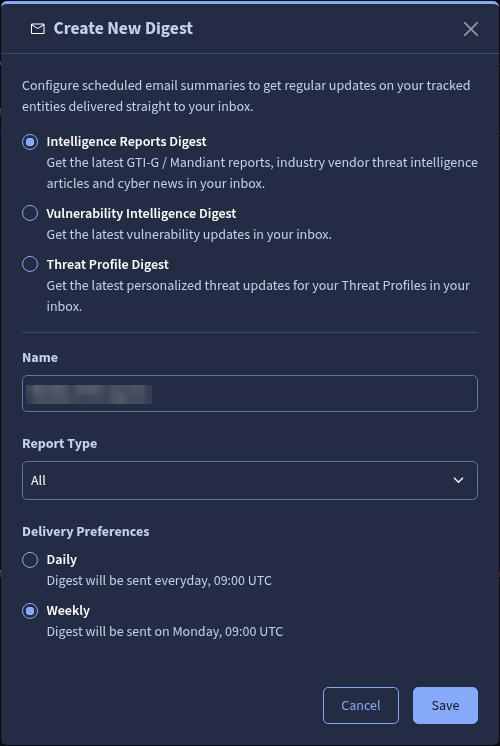
- Click + New digest.
- Select the type of digest:
- Intelligence Reports Digest: the latest Google Threat Intelligence Group (GTIG) / Mandiant reports, industry vendor threat intelligence articles and cyber news.
- Vulnerability Intelligence Digest: the latest vulnerability updates.
- Threat Profile Digest: the latest personalized threat updates for one of your Threat Profiles. This option is only available if there is at least one Threat Profile created.
- Enter a Name for the digest. The name is used in the email subject.
- Configure the filters for the selected digest type:
| Digest type | Filters |
|---|---|
| Intelligence Reports Digest | Report Type: All (default) or any combination of Actor Profile, Country Profile, Cyber Physical Security Roundup, Event Coverage/Implication, Industry Reporting, Malware Profile, Net Assessment, Network Activity Reports, News Analysis, OSINT Article, Patch Report, Strategic Perspective, Threat Activity Alert, Threat Activity Report, Trends and Forecasting, TTP Deep Dive and Weekly Vulnerability Exploitation Report. |
| Vulnerability Intelligence Digest | Risk Rating: one or more of Low, Medium, High and Critical. When all four are selected, vulnerabilities without a risk rating are also included. |
| Threat Profile Digest | Threat Profile: the Threat Profile to follow. Entity Types: All (default) or any combination of Malware, Software toolkit, Campaign, Collection, Actor, Report and Vulnerability. |
- Under Delivery Preferences, choose how often you want to receive the digest:
- Daily (default): sent every day at 09:00 Coordinated Universal Time (UTC).
- Weekly: sent every Monday at 09:00 UTC.
- Click Save. New digests are active by default.
Step 3: Set up alert notifications
The Alerts sub-tab delivers My Landscape alerts to your inbox. Users do not create alerts: Google Threat Intelligence generates them while it monitors your organization profile and domains, whenever it detects a threat targeting your infrastructure, and lists them in My Landscape -> Alerts. In this sub-tab, you create alert notifications, which are rules that determine which of those alerts are sent to you by email. Unlike digests, alert notifications are not scheduled: an email is sent as soon as an alert matching your criteria is generated or escalated.
Special privileges requiredMy Landscape alert notifications are only available to users with the Google Threat Intelligence (Google TI) Standard, Enterprise or Enterprise Plus licenses.
- Go to Settings -> Mail Hub -> Alerts.
- Click + New alert notification.
- In the My Landscape Alert form, fill in the following fields:
| Field | Required | Description |
|---|---|---|
| Name | Yes | A name to identify the alert notification in the Mail Hub. |
| Threat Scenario | No | The Threat Scenarios to be notified about: Data Leak, Initial Access Broker, Insider Threat and Target Technology Watchlist. Defaults to Any Scenario. |
| Severity | Yes | One or more alert severities: Low, Medium, High and Critical. Only alerts with one of the selected severities trigger an email. |
| Minimum Relevance Score | No | The minimum level an alert must reach to trigger an email: Low, Medium (default) or High. |
The Threat Scenarios available in the form depend on the scenarios included in your license.
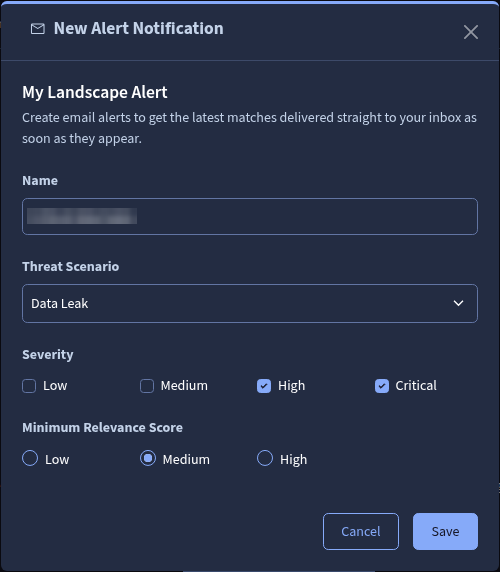
- Click Save. The alert notification is active immediately.
Step 4: Select your Comms subscriptions
The Comms subscriptions sub-tab controls which general communications you receive. Each topic has its own switch, and changes are saved automatically.
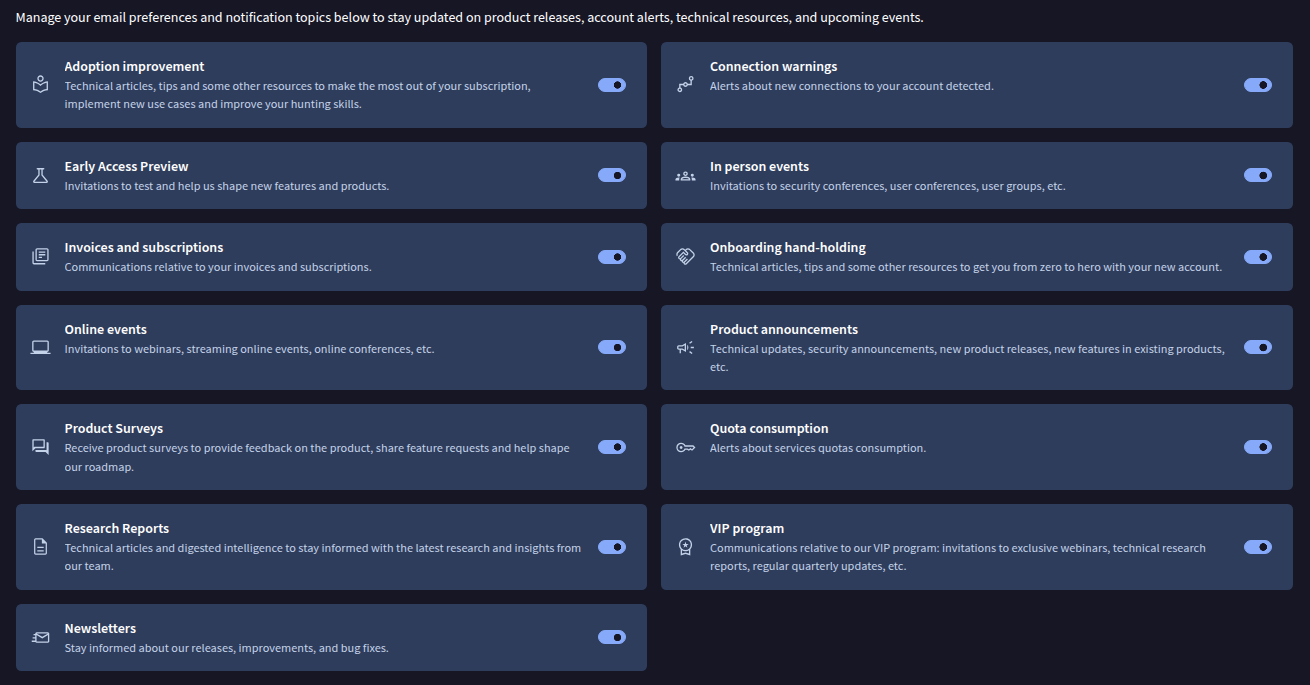
| Topic | Description |
|---|---|
| Adoption improvement | Technical articles, tips and resources to get more value from your subscription, implement new use cases and improve hunting skills. |
| Connection warnings | Notifications about new connections detected on your account. |
| Early Access Preview | Invitations to test and provide feedback on new features and products. |
| In person events | Invitations to security conferences, user conferences and user groups. |
| Invoices and subscriptions | Communications about your invoices and subscriptions. |
| Onboarding hand-holding | Technical articles, tips and resources to help you get started with your new account. |
| Online events | Invitations to webinars, online streaming events and online conferences. |
| Product announcements | Technical updates, security announcements, new product releases and new features in existing products. |
| Product Surveys | Surveys to provide product feedback, submit feature requests and contribute to the product roadmap. |
| Quota consumption | Notifications about service quota consumption. |
| Research Reports | Technical articles and finished intelligence with the latest research and insights. |
| VIP program | Communications about the VIP program, including invitations to exclusive webinars, technical research reports and quarterly updates. |
| Newsletters | Information about releases, improvements and bug fixes. |
Managing your notifications
Managing your digests
The Threat Intelligence digests table lists all your digests with the following columns:

- Digests: the digest name and its selected filters. When there are more than three filters, hover over the
+Nbadge to see the rest. - Type: Intelligence Reports Digest, Threat Profile Digest or Vulnerability Intelligence Digest.
- Frequency: Daily or Weekly, with the delivery day and time.
- Status: a switch to pause or resume the digest without deleting it.
- Actions: the
⋮menu at the end of each row lets you Edit or Delete the digest. The digest type cannot be changed once created.
To act on several digests at once, select them using the checkboxes and click Deactivate or the Delete icon in the toolbar.
Managing your alert notifications
The Alerts table lists all alert notifications configured for your active group:

- Alert notifications: the name, plus the selected Severity and minimum Relevance.
- Threat Scenario: the selected scenarios. When there are more than two, hover over the
+Nbadge to see the rest. - Status: a switch to pause or resume the notification without deleting it.
- Actions: the
⋮menu at the end of each row lets you Edit or Delete the notification.
To act on several notifications at once, select them using the checkboxes and click Deactivate or the Delete icon in the toolbar.
Unsubscribing from an email
Every alert email includes an unsubscribe link at the bottom. The link opens a confirmation page that displays the email address receiving the notification; click Unsubscribe to confirm. Signing in is not required to unsubscribe.
Unsubscribing pauses that specific notification instead of deleting it: the notification remains in the Mail Hub with its Status switched off and can be reactivated at any time. To review all your notifications, use the update your email preferences link included in the email.
How notification emails are delivered
Receiving digests
A digest is sent only if new content matching its filters has been published since the previous delivery; otherwise, no email is sent. The email subject follows the format (<digest name>) Digest for <date>, and each entry links to the full report, vulnerability or entity in Google Threat Intelligence.
When alert emails are sent
An email is sent when an alert matches the Threat Scenario, Severity and Minimum Relevance Score of one of your active alert notifications, and:
- Google Threat Intelligence generates a new alert, or
- An existing alert is escalated: new findings raise its severity or priority so that it now matches your criteria.
Historical findings do not trigger emailsFindings discovered when the Relevance System analyzes historical data (for example, after new assets are added to your Organization Profile) still create alerts in My Landscape, but they do not trigger immediate email notifications.
To limit the number of emails when an alert receives many updates in a short period, minor updates that do not change the alert's title, status, severity or priority do not generate additional emails. If the alert is escalated, a new email is sent immediately.
What an alert email contains
Alert emails are sent by Google Threat Intelligence with the subject [Google Threat Intelligence] <alert name>, and include:
- Alert details: the alert name, the date and time (UTC), the Threat Scenario, the Priority and the Severity.
- Summary: a short explanation of the alert and its relevance to your organization. URLs, domains and IP addresses in the summary are defanged (for example,
hxxps://malicious[.]example[.]com) to prevent them from being opened accidentally from your email client. - View this alert in Google Threat Intelligence: a link that opens the alert in Google Threat Intelligence, in the context of the corresponding group, to review its findings and triage it.
Troubleshooting
Digest emails are not received
- Verify that the digest Status switch is on in Settings -> Mail Hub -> Threat Intelligence digests.
- Digests are sent only when new content matching their filters has been published since the previous delivery.
- Daily digests are sent every day at 09:00 UTC, and weekly digests every Monday at 09:00 UTC.
- Check your spam or quarantine folder and your mail filters.
Alert emails are not received
- Verify that the alert notification Status switch is on, and that its Threat Scenario, Severity and Minimum Relevance Score match the expected alerts.
- Alert notifications are displayed only for the group that was active when they were created. Switch your active group to view and edit them.
- Findings discovered from historical data do not trigger emails, and minor updates that do not change an alert's title, status, severity or priority do not trigger additional emails. See When alert emails are sent.
The Alerts sub-tab or a Threat Scenario is not available
- Alert notifications require access to My Landscape; verify that alerts are visible in My Landscape -> Alerts. The Threat Scenarios offered in the form depend on the scenarios included in your license.
The Threat Profile Digest option is disabled
- This option requires at least one Threat Profile in your group. Create a Threat Profile first.
The type of an existing digest needs to change
- The digest type cannot be changed after creation. Create a new digest of the required type and delete the previous one.
An email notification was unsubscribed by mistake
- Unsubscribing only pauses the notification. Turn its Status switch back on in the Mail Hub.
Links in the alert summary cannot be opened
- This behavior is intentional: URLs, domains and IP addresses in alert summaries are defanged to prevent potentially malicious links from being opened from an email client. Use View this alert in Google Threat Intelligence to review the alert and its findings.
Next steps
After the Mail Hub is configured, scheduled digests, immediate alert emails and the selected communications are delivered to the email address of your account. Related tasks:
- Review and triage the alerts that Google Threat Intelligence generates for your organization in My Landscape alerts.
- Keep your Organization Profile up to date so that alerts reflect your current assets.
- Review the Threat Scenarios available to filter alert notifications.
- Create or refine Threat Profiles to receive Threat Profile Digests.
Updated 21 days ago