
Getting Started with My Landscape, powered by the relevance system
In today's threat landscape, security teams are often overwhelmed by a high volume of dark web alerts. The Relevance System transforms this noise into a high-fidelity signal. By combining Google’s unparalleled frontline intelligence with an understanding of your unique organization, we filter out irrelevant alerts and ensure your team focuses only on the risks that actually matter to your business.
This guide will walk you through setting up your profile, understanding your tailored alerts, and operationalizing these insights.
Important Note: Beta Capabilities
The Relevance System is currently in Beta. While it provides powerful predictive and tailored threat insights, you should continue to use existing security controls like Digital Threat Monitoring (DTM) and Attack Surface Management (ASM) in parallel to ensure comprehensive coverage during this phase.
Prerequisites & Roles
Access to The Relevance System requires an active Google Threat Intelligence license. Your experience within the system will depend on your assigned role:
- GTI Alerts Admin: Required to set up the initial Organization Profile, configure integrations, and manage system-wide alert thresholds.
- GTI Alerts User: Designed for day-to-day analysts. Users can view dashboards, investigate alerts, change alert statuses, and provide feedback, but cannot change the core organizational configuration.
1. The Foundation: Your Organization Profile
The engine behind The Relevance System is your Organization Profile. The system uses this profile as a lens to evaluate every single piece of threat intelligence Google processes globally.
Automated Setup: Setting up your profile is virtually frictionless. Upon your first login as an Admin, simply input your Organization Name and Primary Domain.
The Relevance System will instantly use this information to automatically build your baseline profile by discovering your core business, associated brands, and industry vertical. Once your organization profile is created, you will automatically start receiving alerts.
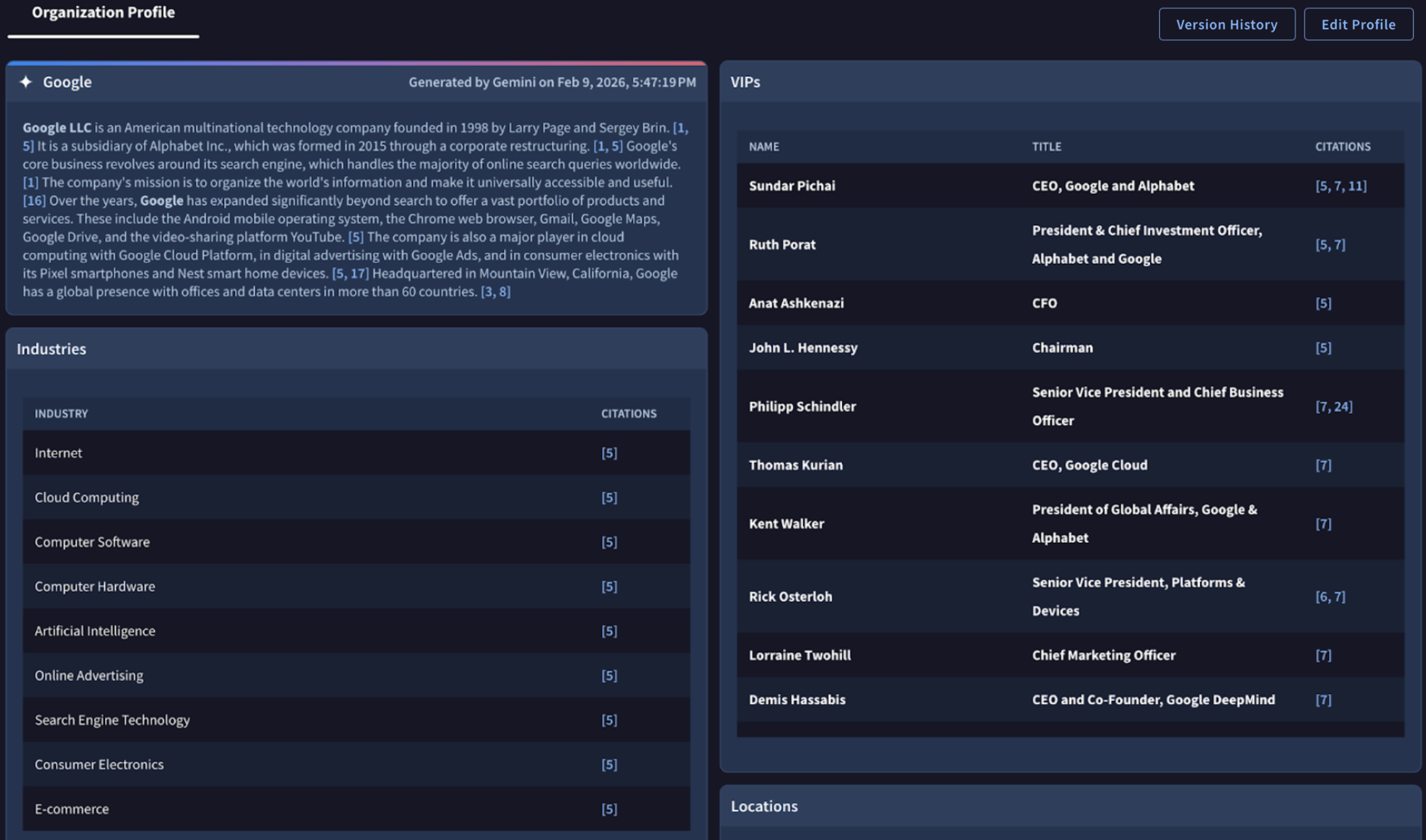
Note that you may experience very few alerts (zero to a few per day, sometimes more). The Relevance System is tuned to only create alerts that are likely relevant to your mission. If you are worried that you are missing important information, please use the dark web search capability and other tools, like DTM.
Each tenant only has one organization profile. If you would like multiple tenants, please reach out to support .
Alert backfilling
After creating your organization profile, recent alerts that would have been created before configuration will start to flow in.
Note that it may take up to 48-72 hours for historical alerts to complete backfilling.
Refining & Editing Your Profile
While the automated setup does the heavy lifting, your environment will inevitably change over time.
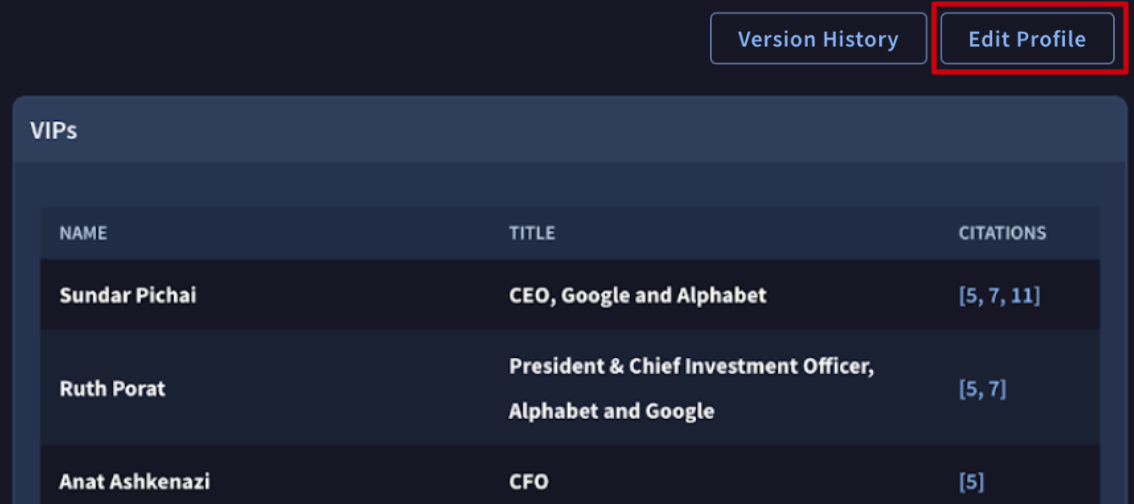
At the top right of your profile, you can manually edit your profile at any time to keep your alerts hyper-relevant:
- Navigate to My landscape (beta) > Organization Profile.
- Edit: Click the edit icon next to the fields to update any element.
- Remove retired assets: For list items, click the 'X' or trash icon next to a technology to remove it from your stack.
- Once you click save, your profile will be saved and versioned. The updated organization profile will then be used to drive your alerting experience.
Citations and Versioning
To maintain accountability and an audit trail, the Organization Profile utilizes citations and versioning.
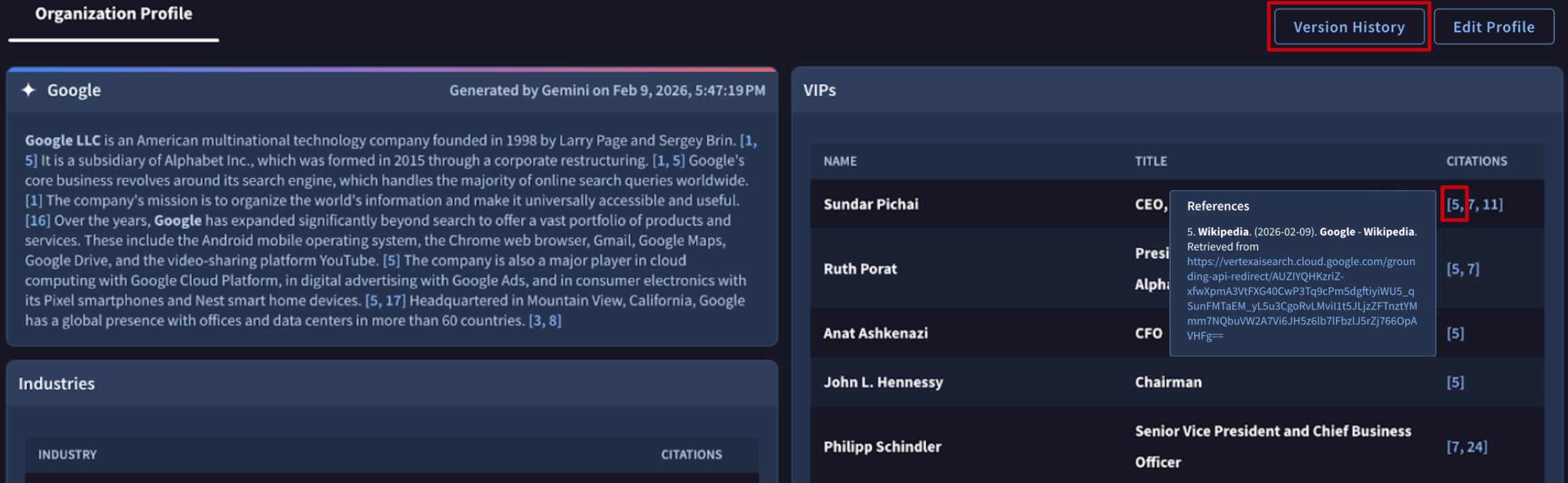
- Citations: Every time a user manually adds or edits a component within the Organization Profile (e.g., adding a new software to the Tech Stack), the system automatically cites that specific user next to the entry. This allows teams to see exactly who defined which parts of the attack surface.
Versioning: The Organization Profile is version-controlled. If you need to review past versions, you can see a log of previous iterations of your profile. To access, click “Version history” at the top of your organization profile.
2. Understanding Your Dashboard & Alerts
Once your profile is configured, your dashboard will populate with prioritized alerts.
What is a Threat Scenario?
In The Relevance System, alerts are built around Threat Scenarios. A Threat Scenario is a broader, contextual narrative of an attack (e.g., an overarching campaign targeting specific vulnerabilities or industries).
As The Relevance System is in Beta, it currently focuses on identifying three core starting Threat Scenarios: Initial Access Broker, Data Leak, and Insider Threat. We will be expanding this to cover a wider array of attack narratives soon.
Understanding the Scores: Relevance vs. Severity vs. Priority
To help you triage effectively, the system evaluates threats across three distinct vectors:
- Relevance Score: How closely does this threat match your organization? This measures the overlap between the threat and your profile (e.g., it targets your specific industry, geography, and a piece of software in your tech stack).
- High: You or a specific asset is directly mentioned.
- Medium: An actor is likely referencing you, but the details are vague.
- Low: This is likely not you, but could be related to a supply chain partner, supplier, or end-user.
- Severity Score How objectively dangerous is this threat globally? This measures the inherent danger of the threat regardless of who it is targeting. The logic for severity is defined differently for each threat scenario.
- Priority: What should I work on right now? Priority is the ultimate ranking mechanism. It dynamically combines your Relevance Score with the Severity Score:
| Relevance | Severity High | Medium | Low |
|---|---|---|---|
| High | CRITICAL | HIGH | MEDIUM |
| Medium | MEDIUM | MEDIUM | LOW |
| Low | LOW | LOW | NO ALERT |
| None | NO ALERT | NO ALERT | NO ALERT |
3. Anatomy of an Alert
When you click into an alert, you aren't just handed raw data. The Relevance System integrates Gemini to act as your AI-powered threat analyst.
Findings vs. Alerts
In Google Threat Intelligence, there is a distinct architectural difference between a Finding and an Alert:
- A Finding is an immutable, granular record of a specific threat detection event. For example, a single leaked credential on a dark web forum, a single IP address communicating with a known Command & Control server, or a specific vulnerable software version found on one of your assets.
- An Alert is a dynamic, stateful container that groups one or more related Findings into a broader Threat Scenario.
What it means to have multiple findings for an alert: If an alert has multiple findings, it means the overarching threat campaign has intersected with your organization's profile in several different ways. For example, if there is an alert for an APT41 Phishing Campaign, having multiple findings might mean the system found three different employee emails targeted (3 findings) and two different external assets hosting the vulnerability the APT is exploiting (2 findings). Multiple findings generally increase the confidence and priority of the alert, as the threat is highly active against your specific attack surface.
Additionally, you are able to filter findings by the timestamp of when the finding is created at the bottom of the alert.
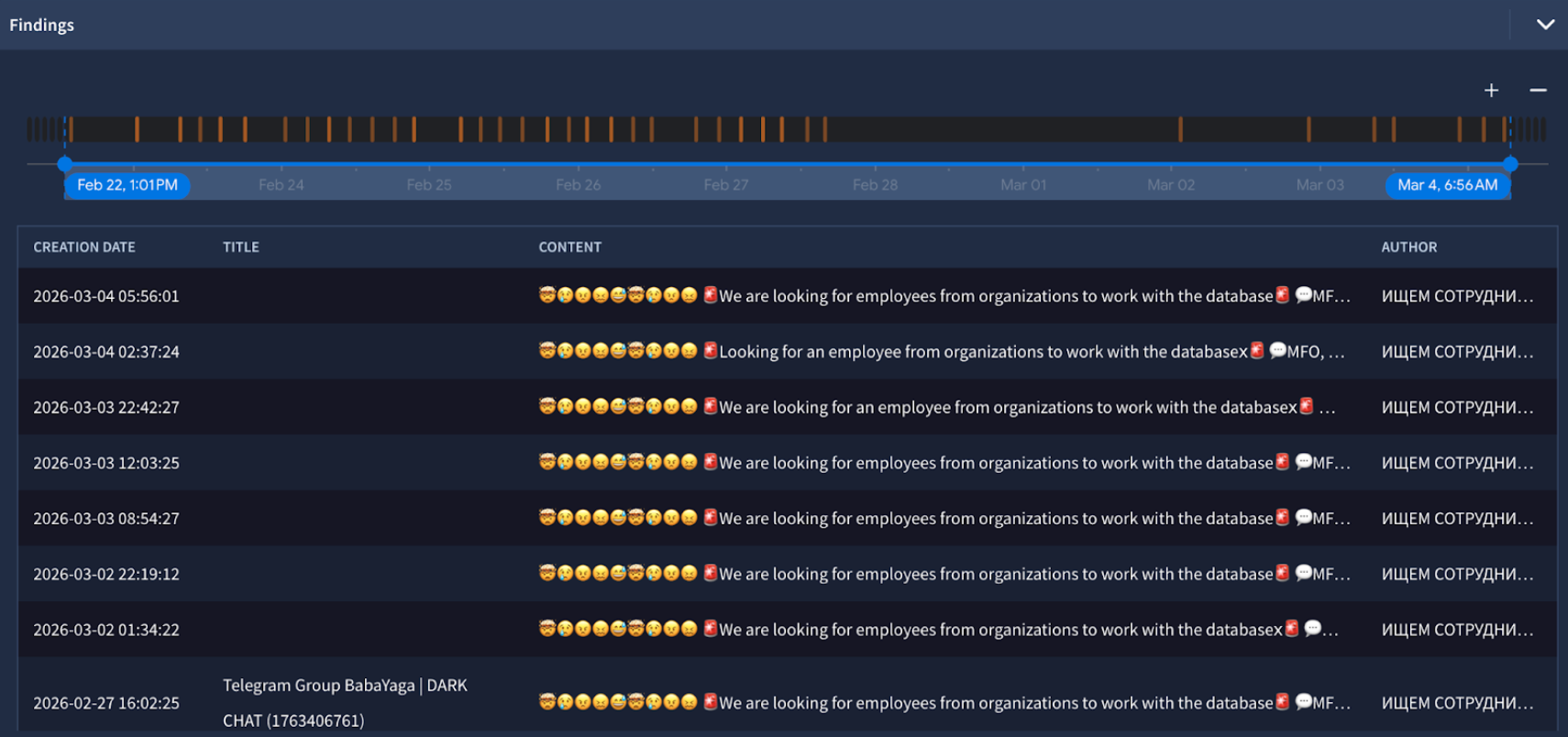
You can click on any of the findings to see the original content.
Inside the Alert
- Gemini title: A short summary of the threat that changes based on new findings.
- Gemini Summary: At the top of every alert, Gemini generates a concise, plain-language summary of the Threat Scenario. It explicitly answers: What is the threat, how does it work, and exactly why was it flagged for your organization?
- Gemini Relevance analysis: A comparison of your organization profile and the threat.
- Content: The observed event with context on the underground handle, the forum and the time it was posted.
- Author information: Includes the handle of the actor and the primary language spoken in the post.
- Source information: Includes additional information about the source.
Automatic translation
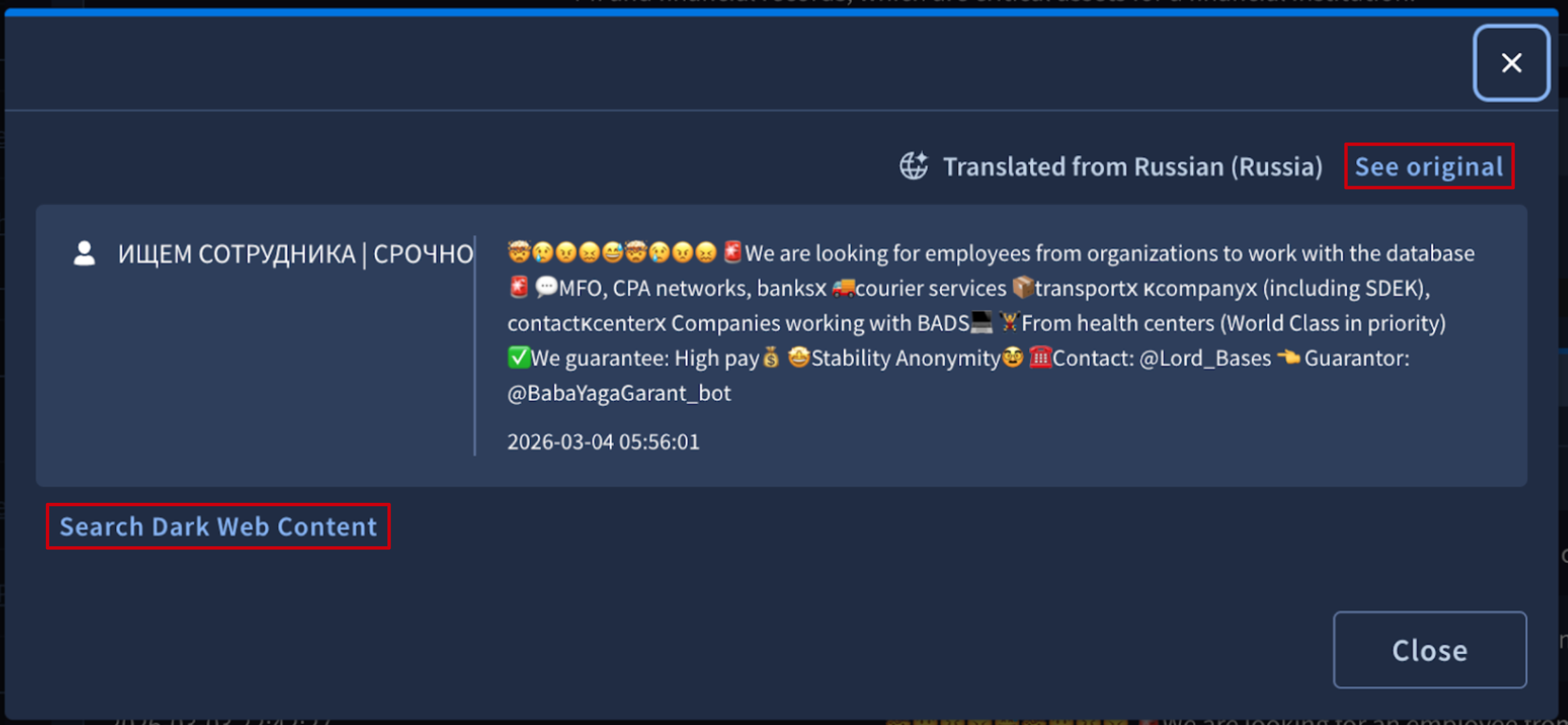
All content collected is automatically translated to English. You are able to see what language was detected by the system. Click on See original in order to see the original content in the original language and structure.
Search dark web content
At the bottom of the content, you are able to click to search related content in the Google Threat Intelligence search experience. You can also click on specific attributes, like the author’s handle, service, URL or forum post title, which will open search for that facet.
4. Managing Alerts
To keep your workspace organized and to continuously train the AI, The Relevance System relies on state management and user feedback.
Alert list
Your relevance system alerts can be found here.
Filters
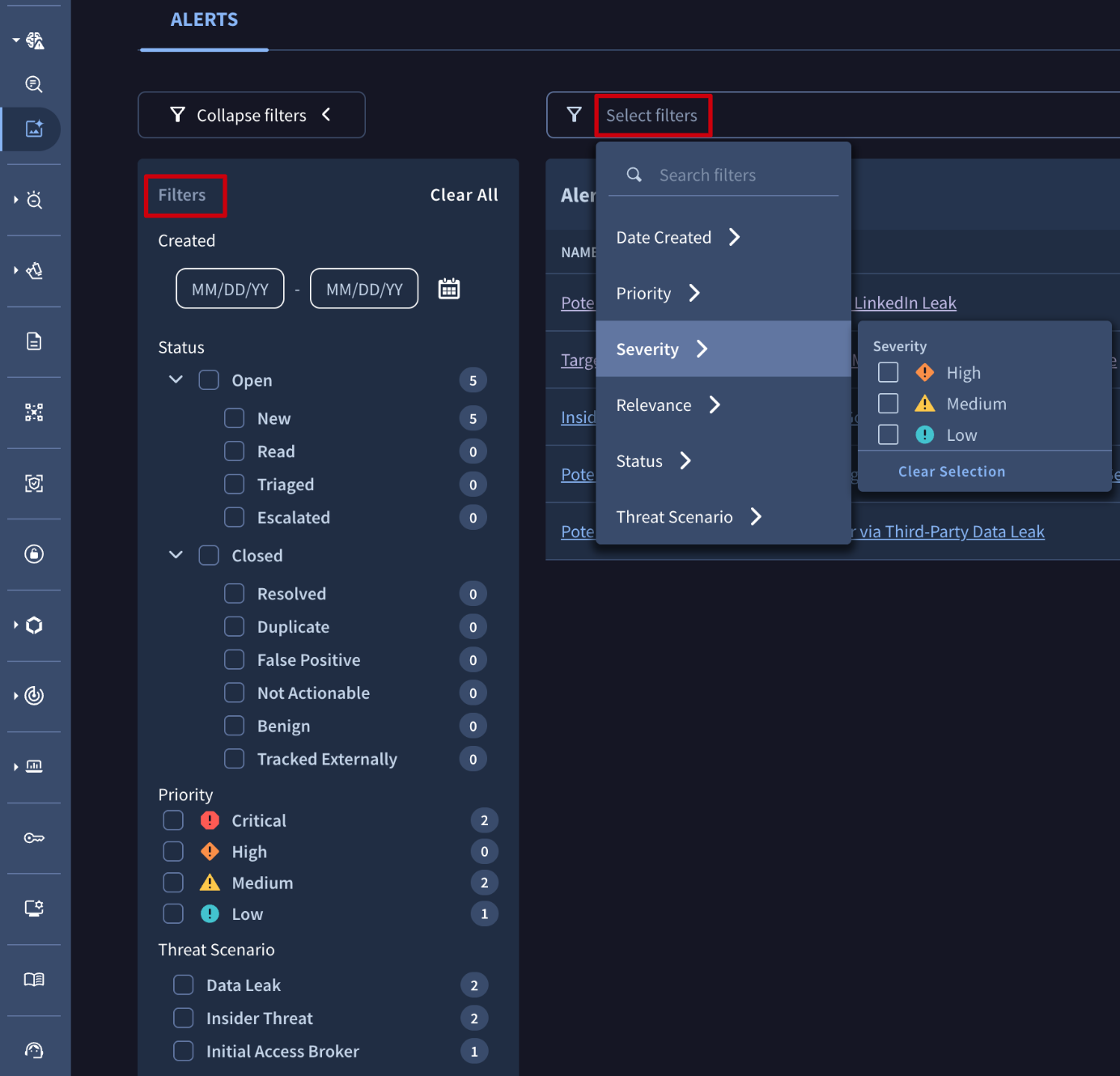
The alert list supports quick filters to make triaging alerts simple, although you are able to have more detailed customized filters from the filter bar. The filter bar and quick filters are synchronized.
Customizing columns
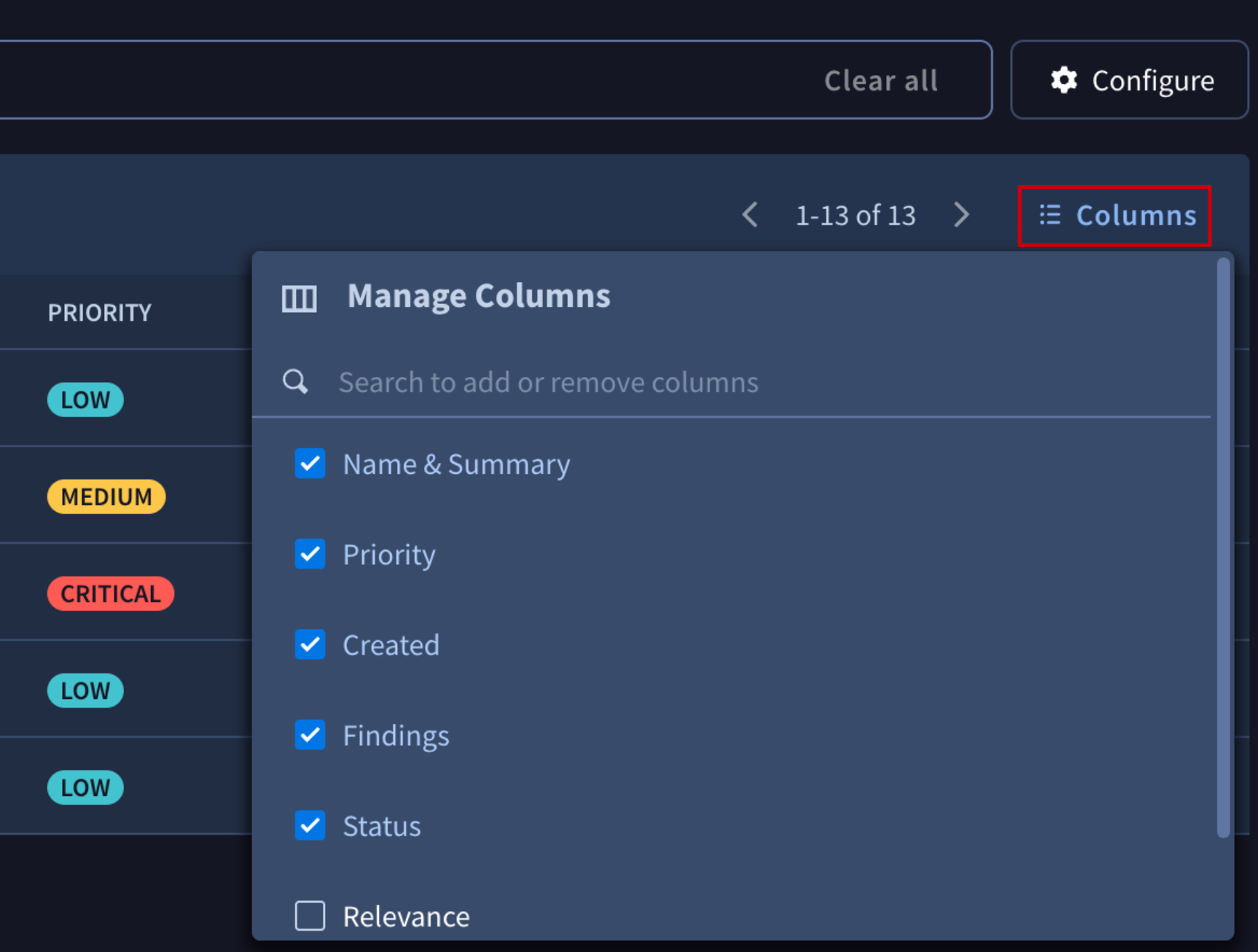
You are able to customize the columns you see in your list. By default, all columns are in the list except for Relevance and Severity score, which can be added.
Alert Statuses
You can move alerts through a standard operational lifecycle:
| Open | Closed |
|---|---|
| New | Resolved |
| Read | Duplicate |
| Triaged | False Positive |
| Escalated | Not Actionable |
| Benign | |
| Tracked Externally |
Alert Feedback
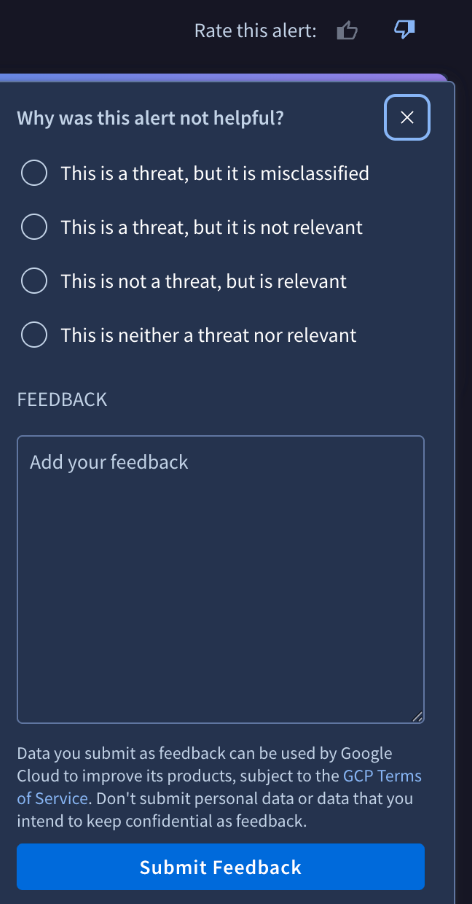
Every organization is unique. If you receive an alert that technically matches your profile but isn't useful, use the Feedback mechanism located at the top of the alert.
5. API documentation
The relevance system has a deeply capable API. However, it requires a different authentication mechanism than the existing GTI API.
- API docs here
Review the Frequently Asked Questions (FAQ) here.
Updated about 2 hours ago