---
updatedAt: 2025-09-25T01:56:35.000Z
agentTools:
  projectIndex: https://gtidocs.readme.io/llms.txt
---

# Nodes

Each node in the graph represents an entity. There are 5 basic entity types:

**Files**. Represented as a rectangular shape with a representation of the file inside.

<Image alt="VTGraph exe icon" align="left" width="40px" src="https://storage.googleapis.com/gtidocresources/guides/threat-graph/images/graphnodes_exeicon_20231113.png" />

<Image alt="VTGraph dll icon" align="left" width="40px" src="https://storage.googleapis.com/gtidocresources/guides/threat-graph/images/graphnodes_dllicon_20231113.png" />

<br/><br/>

**Domains**. 

Represented using the domain favicon, if available.

![VTGraph domain icon](https://storage.googleapis.com/gtidocresources/guides/threat-graph/images/graphnodes_domainicon_20231113.png)

**Urls**. Represented using the icon below.

![VTGraph URL icon](https://storage.googleapis.com/gtidocresources/guides/threat-graph/images/graphnodes_urlicon_20231113.png)

**IP Addresses**. Represented using the flag for its country. If we can’t detect the country from which the IP address is from, we’ll represent it as a black rectangle.

<Image alt="VTGraph US flag icon" align="left" width="40px" src="https://storage.googleapis.com/gtidocresources/guides/threat-graph/images/graphnodes_usflagicon_20231113.png" />

<Image alt="VTGraph unknown country icon" align="left" width="40px" src="https://storage.googleapis.com/gtidocresources/guides/threat-graph/images/graphnodes_unknowncountryicon_20231113.png" />

<br/><br/>

**Relationship nodes**. Represented with a circle containing a representative icon inside.

<Image alt="VTGraph resolutions icon" align="left" width="40px" src="https://storage.googleapis.com/gtidocresources/guides/threat-graph/images/graphnodes_resolutionsicon_20231113.png" />

<Image alt="VTGraph compressed parents icon" align="left" width="40px" src="https://storage.googleapis.com/gtidocresources/guides/threat-graph/images/graphnodes_compressedparentsicon_20231113.png" />

<br/><br/>

The example below is a connection of contacted ip between hash abcde1234 and ip address 1.1.1.1

<Image alt="VTGraph ip relations" align="center" width="240px" src="https://storage.googleapis.com/gtidocresources/guides/threat-graph/images/graphnodes_iprelation_20231113.png" />

More than one ip address was related to abcde1234 file.

<Image alt="VTGraph Multiple ip relations" align="center" width="240px" src="https://storage.googleapis.com/gtidocresources/guides/threat-graph/images/graphnodes_multiplesipsrelations_20231113.png" />

## Advanced node types

***

In addition to the entity node types, VT Graph also offers these some advanced node types you can use to enrich your investigation with:

<Image alt="VTGraph actor icon" align="left" width="40px" src="https://storage.googleapis.com/gtidocresources/guides/threat-graph/images/graphnodes_actoricon_20231113.png" />

<br/>Actor<br/>

<Image alt="VTGraph department icon" align="left" width="40px" src="https://storage.googleapis.com/gtidocresources/guides/threat-graph/images/graphnodes_departmenticon_20231113.png" />

<br/>Department<br/>

<Image alt="VTGraph email icon" align="left" width="40px" src="https://storage.googleapis.com/gtidocresources/guides/threat-graph/images/graphnodes_emailicon_20231113.png" />

<br/>Email<br/>

<Image alt="VTGraph victim icon" align="left" width="40px" src="https://storage.googleapis.com/gtidocresources/guides/threat-graph/images/graphnodes_victimicon_20231113.png" />

<br/>Victim<br/>

<Image alt="VTGraph device icon" align="left" width="40px" src="https://storage.googleapis.com/gtidocresources/guides/threat-graph/images/graphnodes_deviceicon_20231113.png" />

<br/>Device<br/>

<Image alt="VTGraph port icon" align="left" width="40px" src="https://storage.googleapis.com/gtidocresources/guides/threat-graph/images/graphnodes_porticon_20231113.png" />

<br/>Port<br/>

<Image alt="VTGraph service icon" align="left" width="40px" src="https://storage.googleapis.com/gtidocresources/guides/threat-graph/images/graphnodes_serviceicon_20231113.png" />

<br/>Service<br/>

<Image alt="VTGraph ssl certificate icon" align="left" width="40px" src="https://storage.googleapis.com/gtidocresources/guides/threat-graph/images/graphnodes_sslcerticon_20231113.png" />

<br/>SSL Certificate<br/>

<Image alt="VTGraph wallet icon" align="left" width="40px" src="https://storage.googleapis.com/gtidocresources/guides/threat-graph/images/graphnodes_walleticon_20231113.png" />

<br/>Wallet<br/>

These nodes are only available for customers with the Private Graph add on. Contact our team if you are interested in our premium features, [here](https://www.virustotal.com/gui/contact-us/premium-services).

## Color coding of nodes and edges

***

VT Graph use color coding to represent extra information about nodes and their connections.

Google Threat Intelligence contains **verdicts** for files and urls. Graph represents files and urls that have 1 or more detections using red icons. Otherwise, the color black is used.

<Image alt="VTGraph 0 detections icon" align="left" width="40px" src="https://storage.googleapis.com/gtidocresources/guides/threat-graph/images/graphnodes_exeicon_20231113.png" />

<br/>0 detections<br/>

<Image alt="VTGraph 1+ detections icon" align="left" width="40px" src="https://storage.googleapis.com/gtidocresources/guides/threat-graph/images/graphnodes_detectionsicon_20231113.png" />

<br/>1+ detections<br/>

<Image alt="VTGraph selected icon" align="left" width="40px" src="https://storage.googleapis.com/gtidocresources/guides/threat-graph/images/graphnodes_selectedicon_20231113.png" />

<br/>selected<br/>

<Image alt="VTGraph expandable icon" align="left" width="40px" src="https://storage.googleapis.com/gtidocresources/guides/threat-graph/images/graphnodes_canbeexpandedicon_20231113.png" />

<br/>can be expanded<br/>

Nodes that have not been **expanded** yet are represented with a black circle in top right corner. Double clicking on unexpanded nodes will automatically trigger an auto-expansion on that node.

**Selected nodes** are represented using blue circle. The edges of their direct connections are also represented in blue.

VT Graph uses a kind of node to represent relationships. Arrow edges are used to represent the **direction of the relationship**.

## Actions

***

After a node or relationship is selected, different actions can be performed. Furthermore, bulk actions can be performed over multiple nodes when selected.

## Node

***

Once a node is selected, the left panel will show the relevant information related to it. From there, you will be able to expand relationships, find detection verdicts, comments, etc.
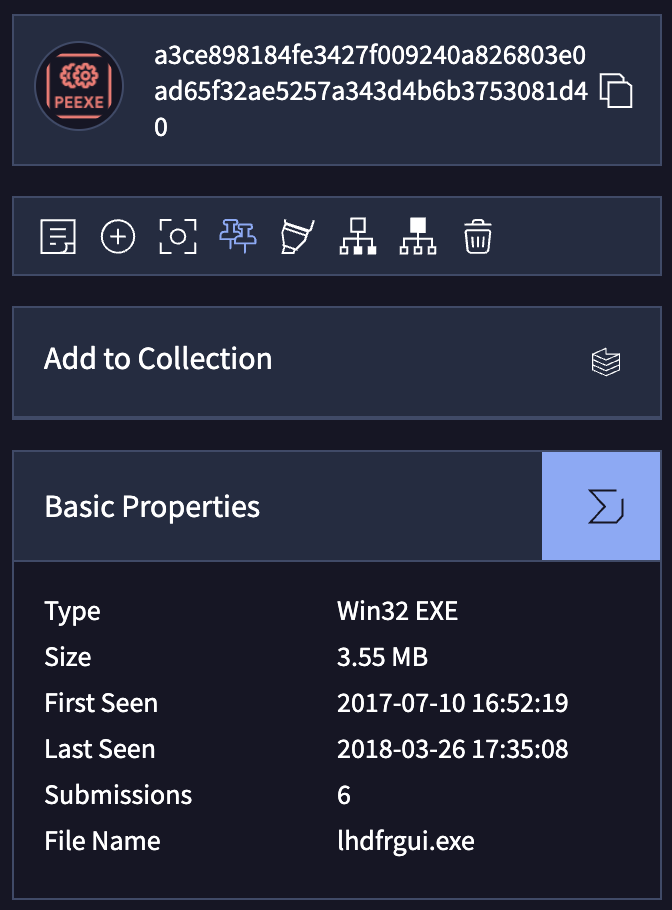
![VTGraph left panel](https://storage.googleapis.com/gtidocresources/guides/threat-graph/images/graphnodes_leftpanel_20240405.png)

There are actions that can be performed over the selected node. Doing right click over a node will show a contextual menu with the same actions that can be performed from the left panel.

<Image alt="VTGraph edit label icon" align="left" width="40px" src="https://storage.googleapis.com/gtidocresources/guides/threat-graph/images/graphnodes_editlabelicon_20231113.png" />

<br/>**Edit Label**<br/>

Allows to edit the node label. To delete the label, just leave it empty. By default, the initial will be labeled with the file name if we have it, “Root node” otherwise. For urls, domains and ip, we’ll use the display value as label.

<Image alt="VTGraph add new node icon" align="left" width="40px" src="https://storage.googleapis.com/gtidocresources/guides/threat-graph/images/graphnodes_addnewnodeicon_20231113.png" />

<br/>**Add new node**<br/>

Opens the panel which guides you to add a new connected node to the selected node. Links connecting nodes that have been manually added are represented with a dotted line.

<Image alt="VTGraph center node icon" align="left" width="40px" src="https://storage.googleapis.com/gtidocresources/guides/threat-graph/images/graphnodes_centernodeicon_20231113.png" />

<br/>**Center node**<br/>

Center the node in the screen

<Image alt="VTGraph ping or remove node icon" align="left" width="40px" src="https://storage.googleapis.com/gtidocresources/guides/threat-graph/images/graphnodes_pingnodeicon_20231113.png" />

<br/>**Pin node / Remove pin**<br/>

Removes the animation or gravity from the graph. By default, the nodes can be dragged but they'll return to a stable graph representation after the click.

When we pin the node, it will stick to the position where we drag it. If we want the node to recover their default behaviour we can "remove pin" from the node.

<Image alt="VTGraph highlight node icon" align="left" width="40px" src="https://storage.googleapis.com/gtidocresources/guides/threat-graph/images/graphnodes_highlightnodeicon_20231113.png" />

<br/>**Highlight**<br/>

Big graphs contains a lot of nodes and edges and they are complicated to understand. To help with this problem we can highlight a node, this will hide the nodes that are not directly connected to the highlighted node. You can remove the highlight by clicking somewhere else in the graph.

<Image alt="VTGraph select children icon" align="left" width="40px" src="https://storage.googleapis.com/gtidocresources/guides/threat-graph/images/graphnodes_selectchildrenicon_20231113.png" />

<br/>**Select children**<br/>

Select the list of nodes that are children of the selected node

<Image alt="VTGraph select parents icon" align="left" width="40px" src="https://storage.googleapis.com/gtidocresources/guides/threat-graph/images/graphnodes_selectparentsicon_20231113.png" />

<br/>**Select parents**<br/>

Select the list of nodes that are parents of the selected node

<Image alt="VTGraph delete node icon" align="left" width="40px" src="https://storage.googleapis.com/gtidocresources/guides/threat-graph/images/graphnodes_deletenodesicon_20231113.png" />

<br/>**Delete node**<br/>

Deletes the selected nodes and its edges. 

<Image alt="VTGraph full expansion icon" align="left" width="40px" src="https://storage.googleapis.com/gtidocresources/guides/threat-graph/images/graphnodes_fullexpansionicon_20231113.png" />

<br/>**Full expansion**<br/>

Expands by all the available expansions for the selected node. It performs the same action as clicking individually in each expansion in the expansion section. By default the first node in the investigation will be expanded using all their available expansions.

<Image alt="VTGraph open public report icon" align="left" width="40px" src="https://storage.googleapis.com/gtidocresources/guides/threat-graph/images/graphnodes_openpublicreporticon_20231113.png" />

<br/>**Open public report**<br/>

Opens the Google Threat Intelligence public report for the selected node.

## Relationship node

***

Relationship nodes are special as they are represented as a single node that group other nodes. Because that, it merges actions from both single and multiple node selection.
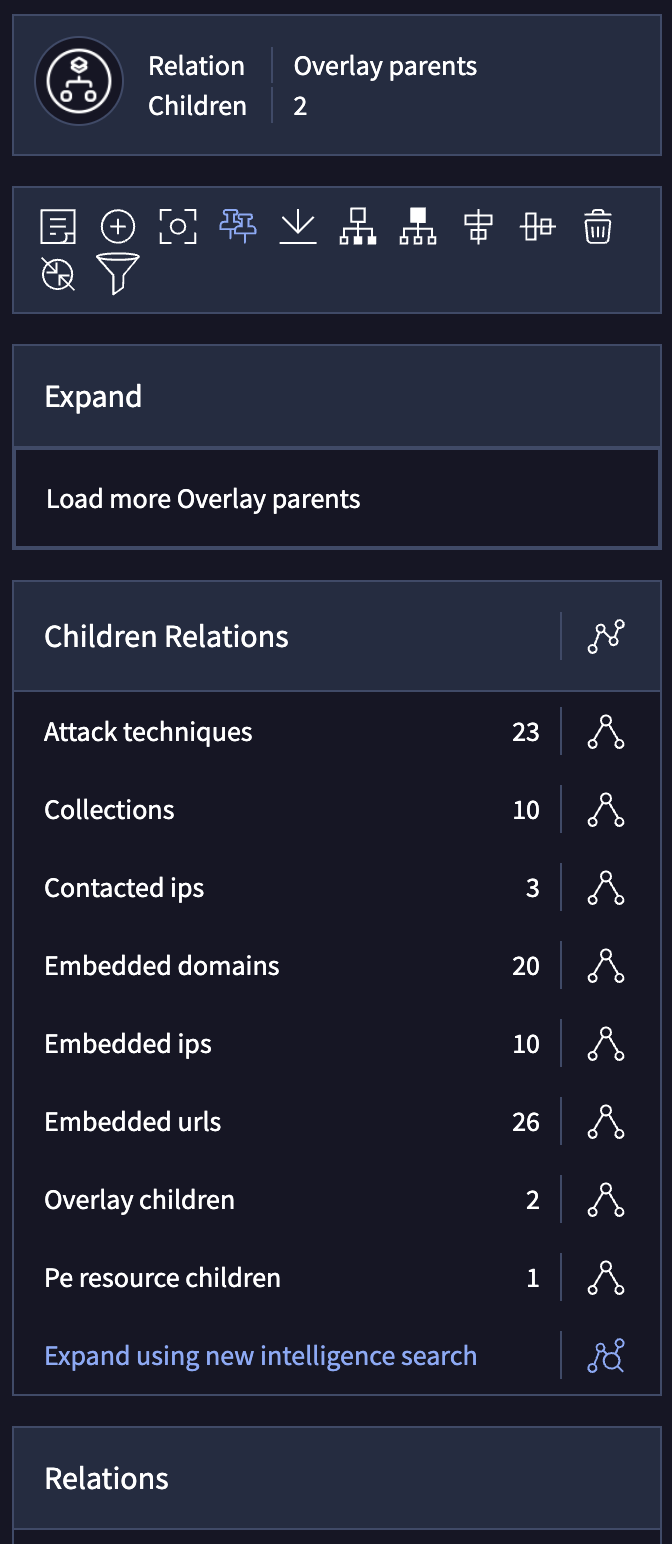
![VTGraph relationship nodes menu](https://storage.googleapis.com/gtidocresources/guides/threat-graph/images/graphnodes_relationshipnodesmenu_20240405.png)

<Image alt="VTGraph edit label icon" align="left" width="40px" src="https://storage.googleapis.com/gtidocresources/guides/threat-graph/images/graphnodes_editlabelicon_20231113.png" />

<br/>**Edit Label**<br/>

Allows to edit the node label. To delete the label, just leave it empty. By default, the initial will be labeled with the file name if we have it, “Root node” otherwise. For urls, domains and ip, we’ll use the display value as label.

<Image alt="VTGraph add new node icon" align="left" width="40px" src="https://storage.googleapis.com/gtidocresources/guides/threat-graph/images/graphnodes_addnewnodeicon_20231113.png" />

<br/>**Add connected node**<br/>

Opens the panel which guides you to add a new connected node to the selected node. Links connecting nodes that have been manually added are represented with a dotted line.

<Image alt="VTGraph center node icon" align="left" width="40px" src="https://storage.googleapis.com/gtidocresources/guides/threat-graph/images/graphnodes_centernodeicon_20231113.png" />

<br/>**Center node**<br/>

Center the node in the screen

<Image alt="VTGraph ping or unping node icon" align="left" width="40px" src="https://storage.googleapis.com/gtidocresources/guides/threat-graph/images/graphnodes_pingnodeicon_20231113.png" />

<br/>**Pin node / Unpin node**<br/>

Removes the animation or gravity from the graph. By default, the nodes can be dragged but they'll return to a stable graph representation after the click.

When we pin the node, it will stick to the position where we drag it. If we want the node to recover their default behaviour we can "remove pin" from the node.

<Image alt="VTGraph download csv node icon" align="left" width="40px" src="https://storage.googleapis.com/gtidocresources/guides/threat-graph/images/graphnodes_downloadcsvicon_20231113.png" />

<br/>**Download CSV**<br/>

Opens a menu with all the entity ids grouped by the selected relationship node.

<Image alt="VTGraph select children icon" align="left" width="40px" src="https://storage.googleapis.com/gtidocresources/guides/threat-graph/images/graphnodes_selectchildrenicon_20231113.png" />

<br/>**Select children**<br/>

Select the list of nodes that are children of the selected node

<Image alt="VTGraph select parents icon" align="left" width="40px" src="https://storage.googleapis.com/gtidocresources/guides/threat-graph/images/graphnodes_selectparentsicon_20231113.png" />

<br/>**Select parents**<br/>

Select the list of nodes that are parents of the selected node

<Image alt="VTGraph align children vertically icon" align="left" width="40px" src="https://storage.googleapis.com/gtidocresources/guides/threat-graph/images/graphnodes_alignchildrenverticallyicon_20231113.png" />

<br/>**Align children vertically**<br/>

Align the children of the relationship node vertically

<Image alt="VTGraph align childre horizontaly icon" align="left" width="40px" src="https://storage.googleapis.com/gtidocresources/guides/threat-graph/images/graphnodes_alignchildrenhorizontallyicon_20231113.png" />

<br/>**Align children horizontally**<br/>

Align the children of the relationship node horizontally

<Image alt="VTGraph delete node icon" align="left" width="40px" src="https://storage.googleapis.com/gtidocresources/guides/threat-graph/images/graphnodes_deletenodesicon_20231113.png" />

<br/>**Delete**<br/>

Deletes the selected nodes and its edges. 

<Image alt="VTGraph calculate commonalities icon" align="left" width="40px" src="https://storage.googleapis.com/gtidocresources/guides/threat-graph/images/graphnodes_calculatecommanalitiesicon_20231113.png" />

<br/>**Calculate commonalities**<br/>

Find common features and patterns for the children nodes of the relationship node. The results will be shown in the left panel. More info related to that process below.

## Multiple node selection

***

Multiple nodes can be selected at the same time. There are two ways to select multiple nodes.

The first one is doing click at the same time you press the *shift* key on your keyboard. The left panel will be updated with the information related to the selection.
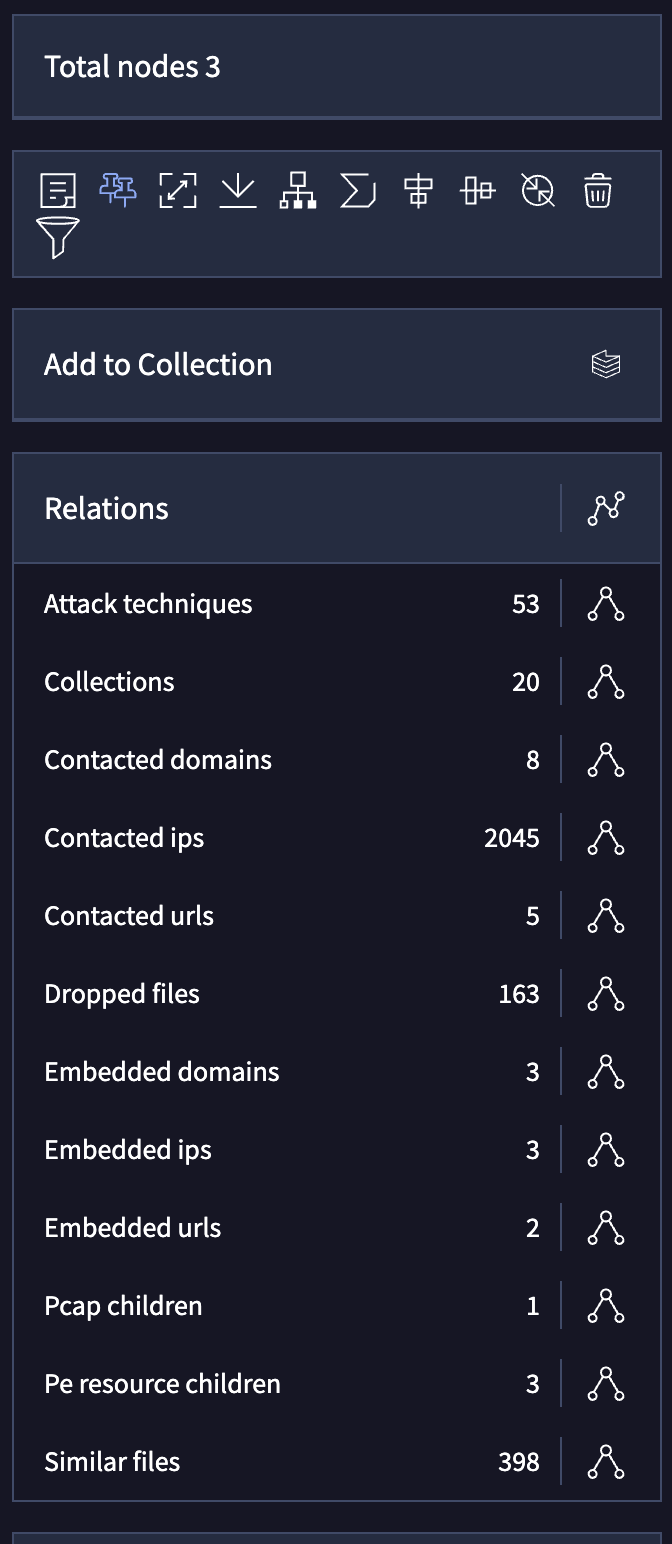
![VTGraph mutiple nodes menu](https://storage.googleapis.com/gtidocresources/guides/threat-graph/images/graphnodes_multiplenodesmenu_20240405.png)


You can also select multiple nodes by pressing shift and click-dragging in the canvas. The same way you are used to select multiple files in any operating system.

These are the actions available:

<Image alt="VTGraph edit label icon" align="left" width="40px" src="https://storage.googleapis.com/gtidocresources/guides/threat-graph/images/graphnodes_editlabelicon_20231113.png" />

<br/>**Edit label**<br/>

Allows to edit the node label. To delete the label, just leave it empty. By default, the initial will be labeled with the file name if we have it, “Root node” otherwise. For urls, domains and ip, we’ll use the display value as label.

<Image alt="VTGraph pin or remove pin icon" align="left" width="40px" src="https://storage.googleapis.com/gtidocresources/guides/threat-graph/images/graphnodes_pingnodeicon_20231113.png" />

<br/>**Pin node / Remove pin**<br/>

Removes the animation or gravity from the graph. By default, the nodes can be dragged but they'll return to a stable graph representation after the click.

When we pin the node, it will stick to the position where we drag it. If we want the node to recover their default behaviour we can "remove pin" from the node.

<Image alt="VTGraph center node icon" align="left" width="40px" src="https://storage.googleapis.com/gtidocresources/guides/threat-graph/images/graphnodes_centernodeicon_20231113.png" />

<br/>**Center node**<br/>

Center the selected nodes in the screen

<Image alt="VTGraph download csv icon" align="left" width="40px" src="https://storage.googleapis.com/gtidocresources/guides/threat-graph/images/graphnodes_downloadcsvicon_20231113.png" />

<br/>**Download CSV**<br/>

**Opens a menu with all the entity ids for the nodes selected.**

<Image alt="VTGraph align children vertically icon" align="left" width="40px" src="https://storage.googleapis.com/gtidocresources/guides/threat-graph/images/graphnodes_alignchildrenverticallyicon_20231113.png" />

<br/>**Align Children Vertically**<br/>

Align the selected nodes vertically

<Image alt="VTGraph align children horizontally icon" align="left" width="40px" src="https://storage.googleapis.com/gtidocresources/guides/threat-graph/images/graphnodes_alignchildrenhorizontallyicon_20231113.png" />

<br/>**Align Children Horizontally**<br/>

Align the selected nodes horizontally

<Image alt="VTGraph delete node icon" align="left" width="40px" src="https://storage.googleapis.com/gtidocresources/guides/threat-graph/images/graphnodes_deletenodesicon_20231113.png" />

<br/>**Delete node**<br/>

Deletes the selected nodes and its edges. 

<Image alt="VTGraph full expansion icon" align="left" width="40px" src="https://storage.googleapis.com/gtidocresources/guides/threat-graph/images/graphnodes_fullexpansionicon_20231113.png" />

<br/>**Full expansion**<br/>

Expands by all the available expansions for one of the selected nodes. It performs the same action as clicking individually in each expansion in the expansion section. By default the first node in the investigation will be expanded using all their available expansions.

<Image alt="VTGraph calculate commonalities icon" align="left" width="40px" src="https://storage.googleapis.com/gtidocresources/guides/threat-graph/images/graphnodes_calculatecommanalitiesicon_20231113.png" />

<br/>**Calculate commonalities**<br/>

Find common features and patterns for the selected nodes. The results will be shown in the left panel. More info related to that process below.

## Submissions

***

The submission box gives you a graphical representation of the submissions made for the selected file, grouped by country or by upload date.
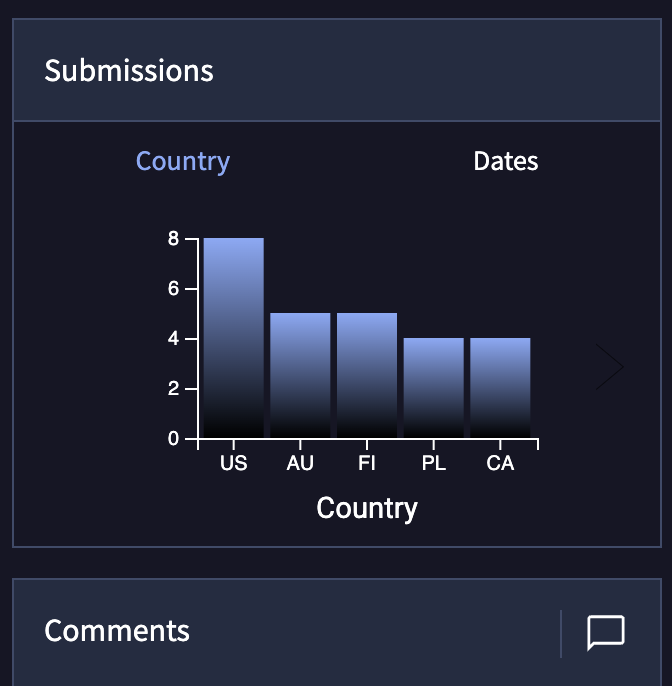
![VTGraph submissions](https://storage.googleapis.com/gtidocresources/guides/threat-graph/images/graphnodes_submissions_20240405.png)